OCR Data Extraction from Images: E-Challan Example (Batch OCR Guide)
Part of our Batch PDF Text Extraction & OCR Guide — the complete overview of template-based batch extraction and export to Excel or CSV.
When a document exists only as a photo or scanned PDF, there is no selectable text to extract—you need OCR (Optical Character Recognition). This tutorial demonstrates OCR based data extraction from image files using an e-challan as a real-world example: challan number, vehicle details, offence code, amount, and date.
The same batch ocr workflow applies to receipts, ID scans, delivery proofs, and any image-heavy document where you need structured Excel output.
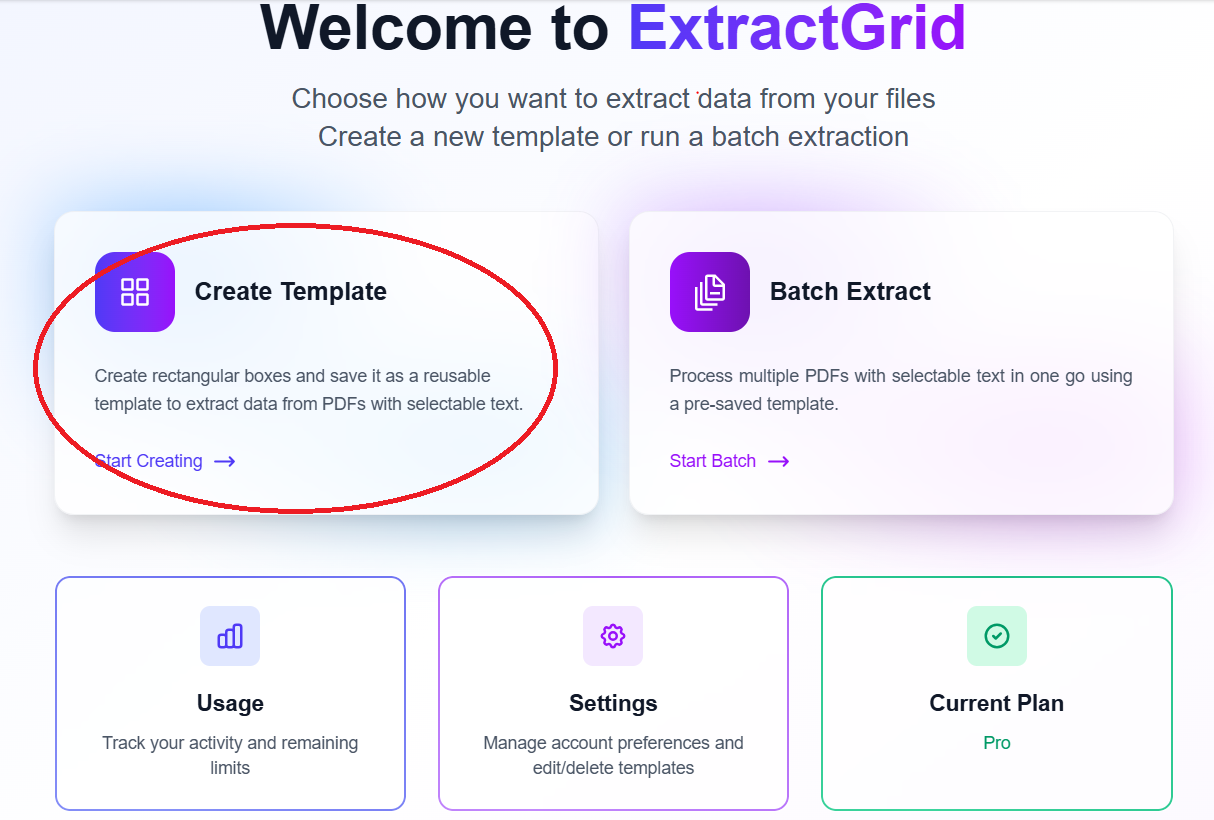
Step 1: Create a template
Click Create Template on the dashboard.
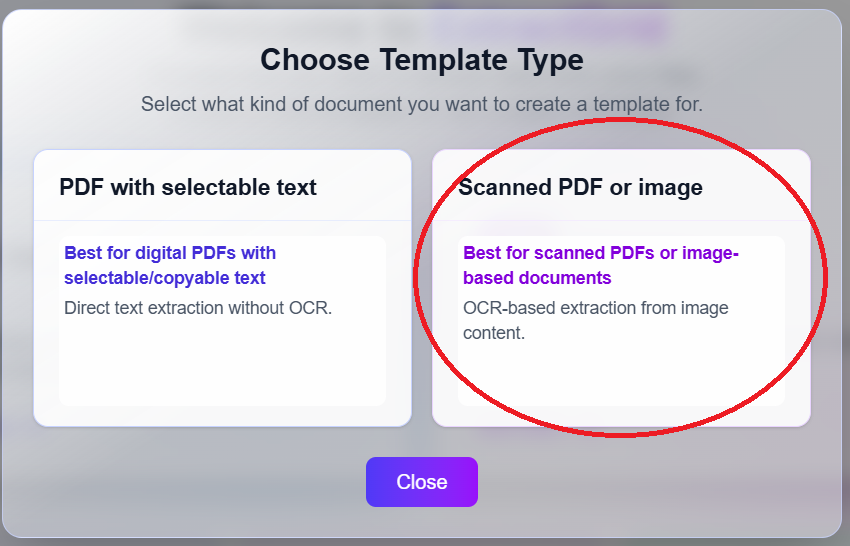
Step 2: Select Scanned PDF or image
Choose Scanned PDF or image to enable batch OCR recognition on pixel-based documents.
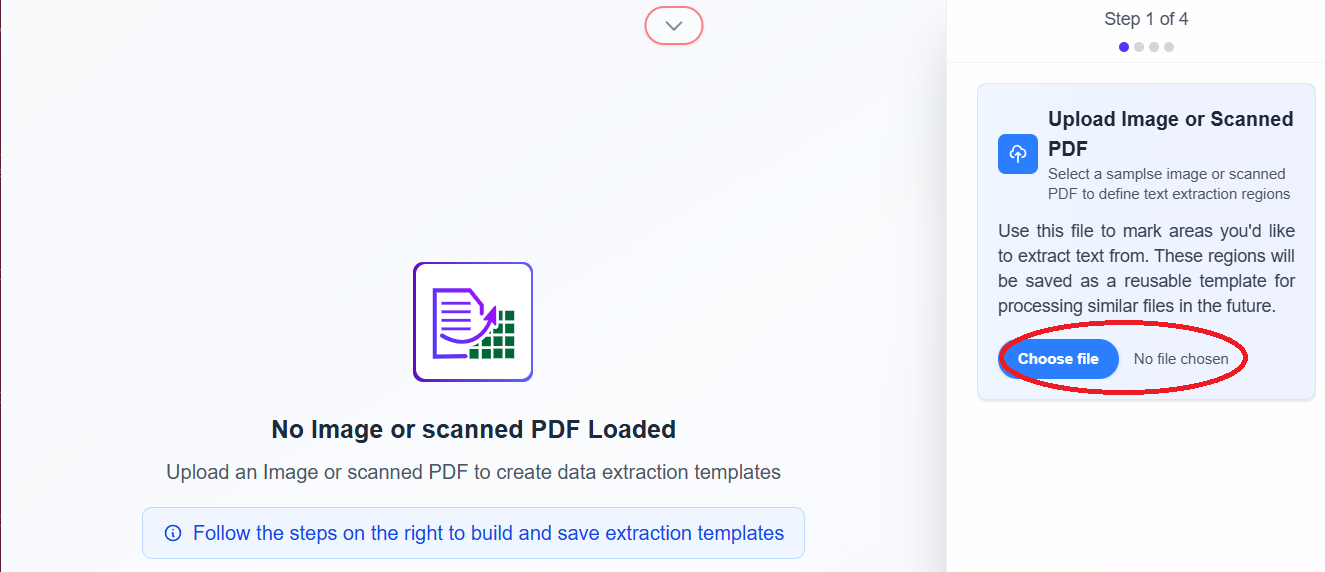
Step 3: Upload a sample e-challan
Upload one challan image or scanned PDF. Use a clear, high-resolution file—best pdf ocr results depend on image quality.
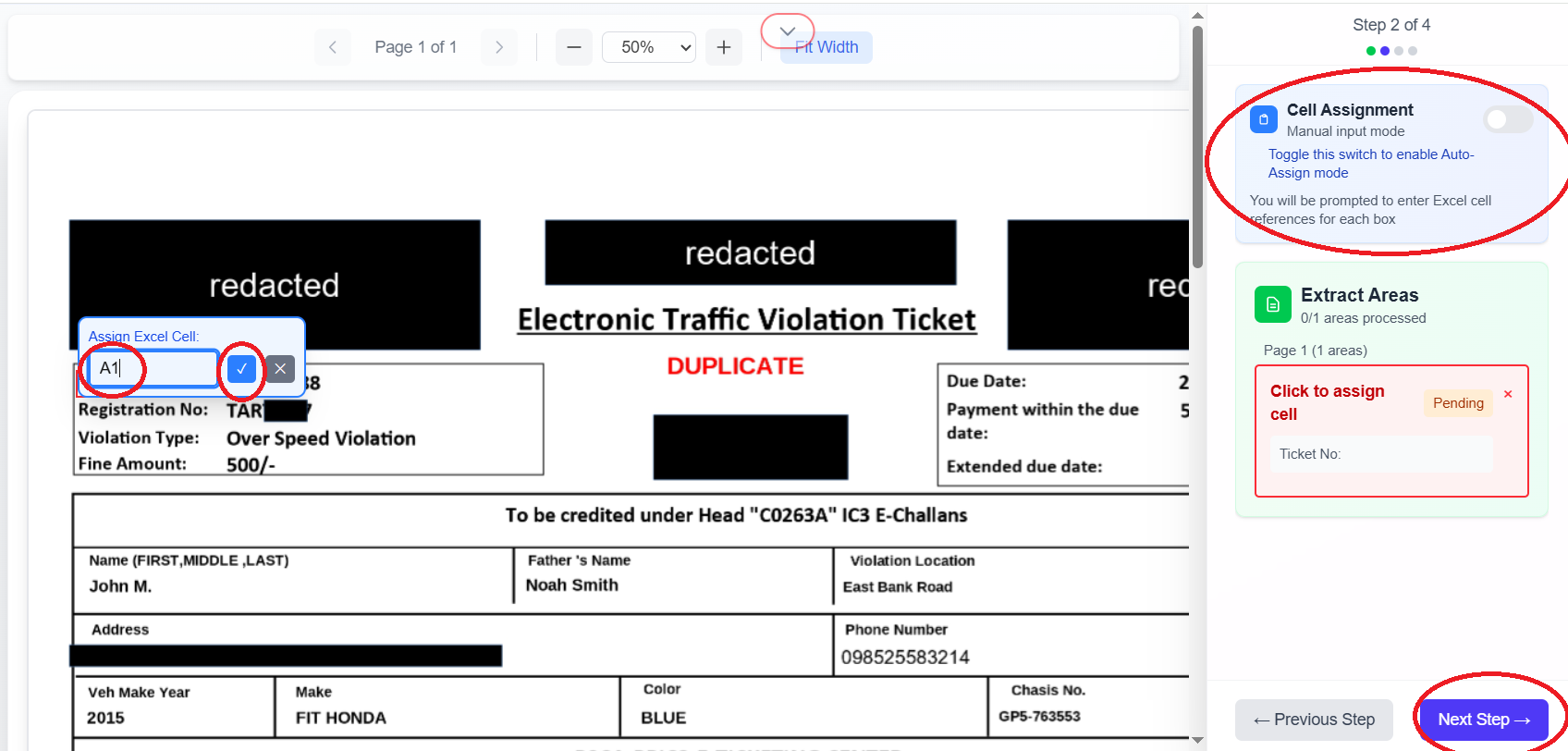
Step 4: Draw bounding boxes and assign cells manually
In this tutorial, cell numbers are assigned manually. Draw boxes tightly around the areas you want to extract. A popup will appear, allowing you to enter the cell number of your choice. The extracted text will then be placed into the corresponding cell in the spreadsheet.
Step 5: Save the OCR template
Name the template (for example, e-challan-ocr) and click Save Template, then Next step.
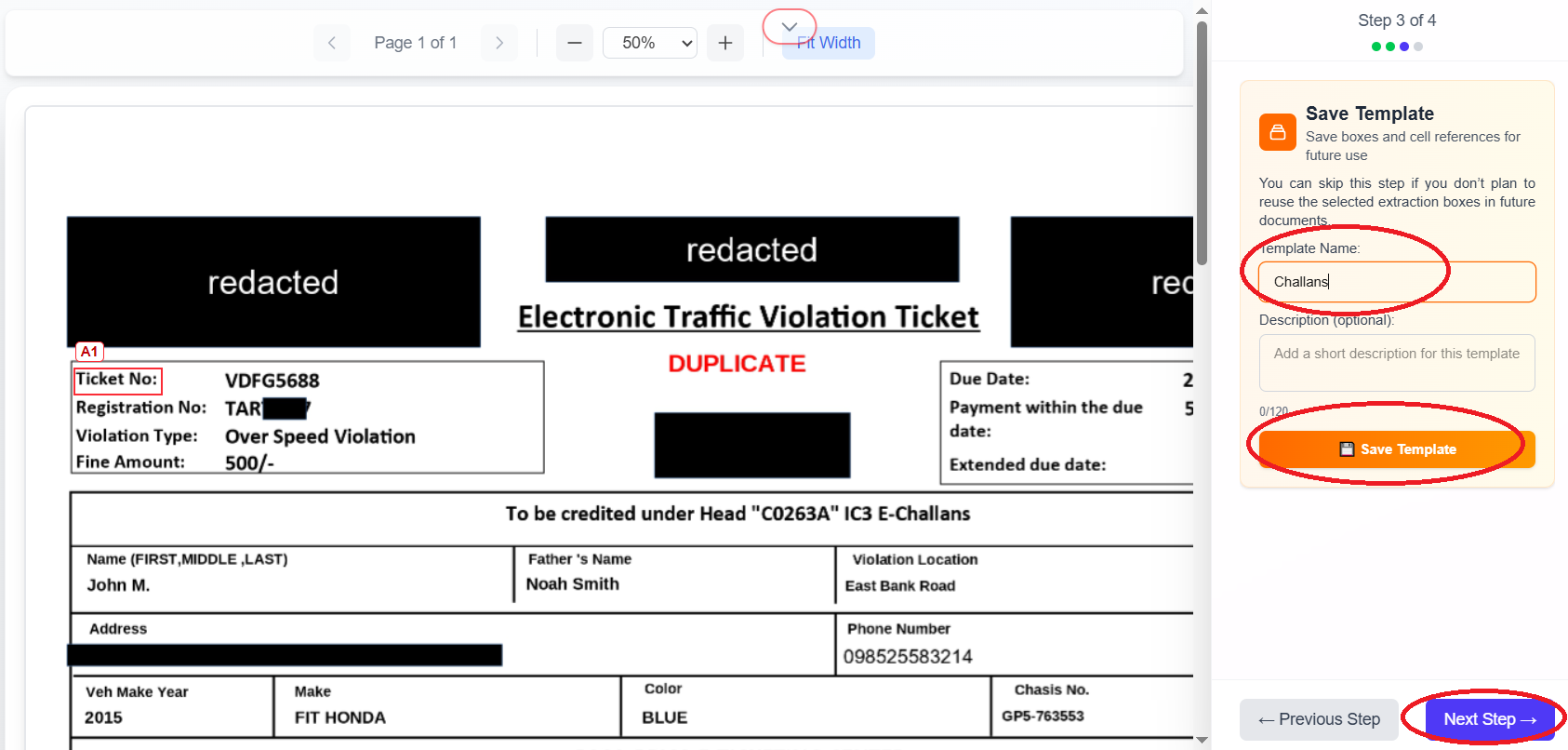
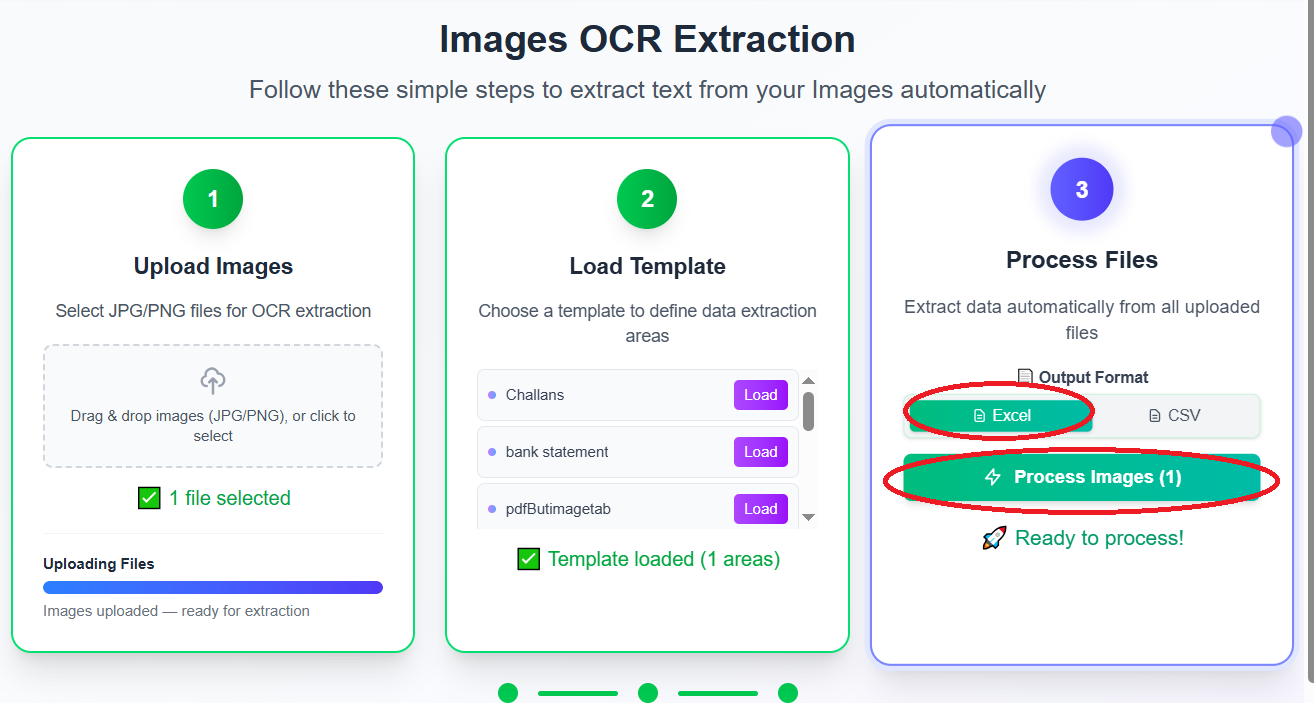
Step 6: Test Excel export on one challan
Select Excel and run Process files to confirm OCR accuracy on a single file.
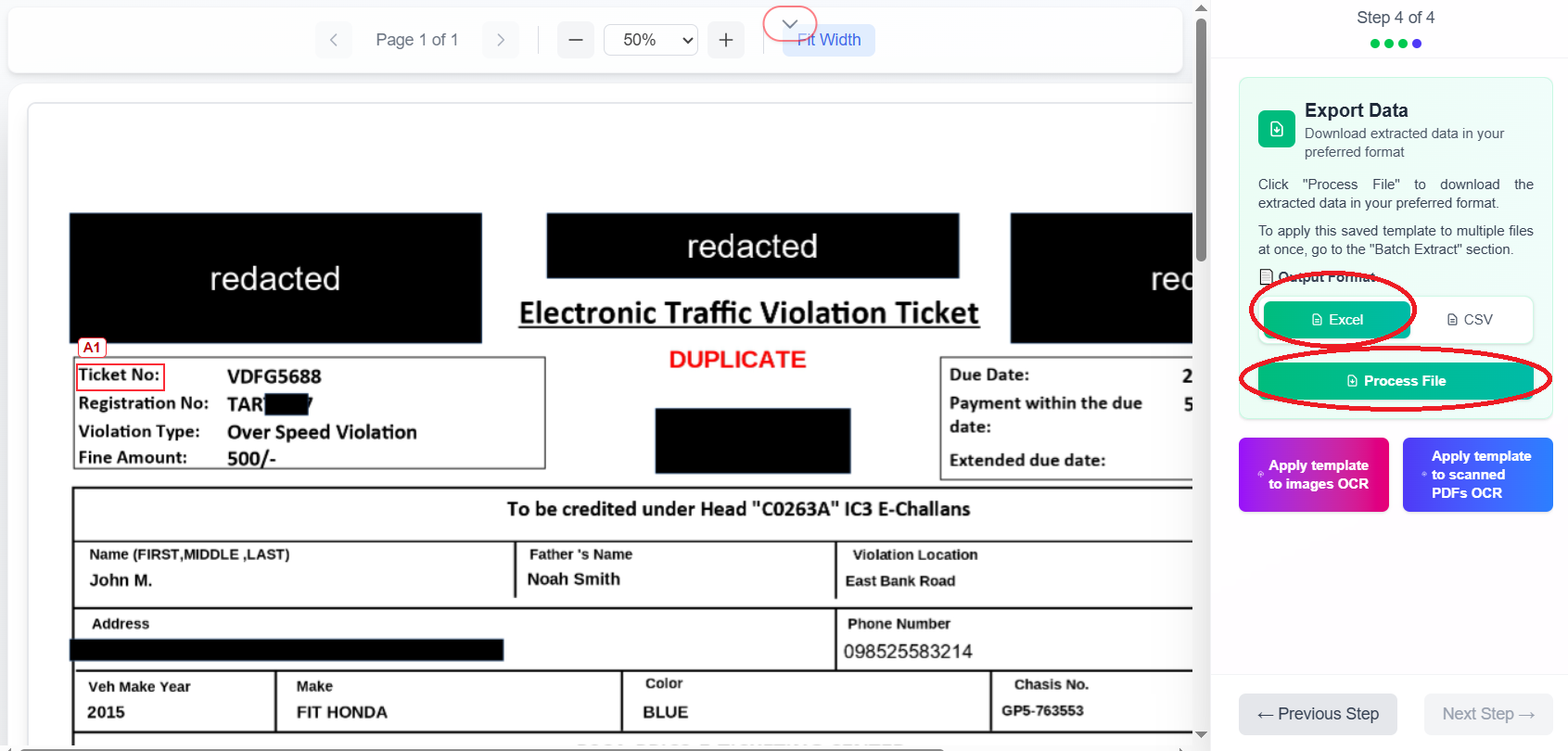
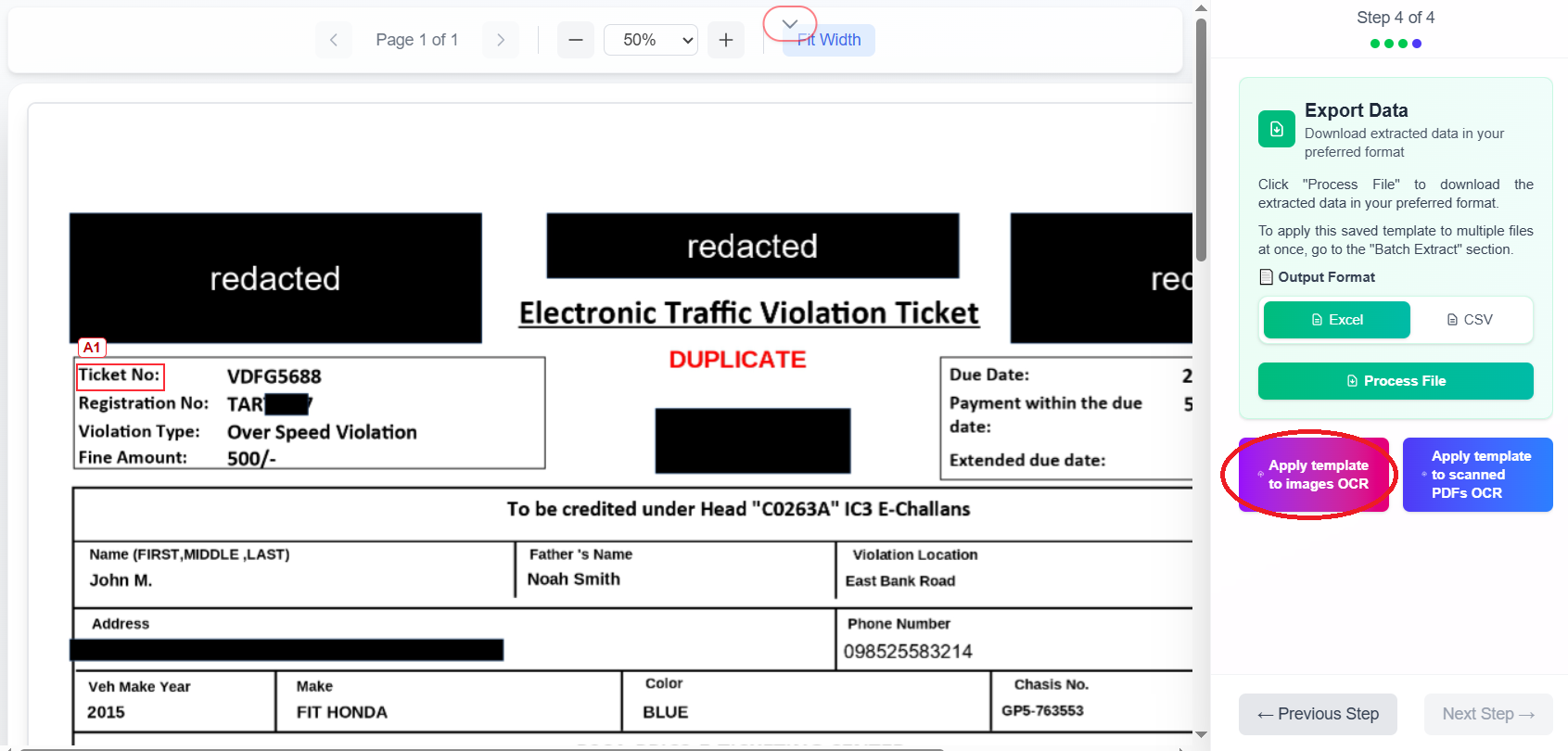
Step 7: Open batch processing for multiple images
Click Apply this template to multiple images to process a batch of challan photos or scans.
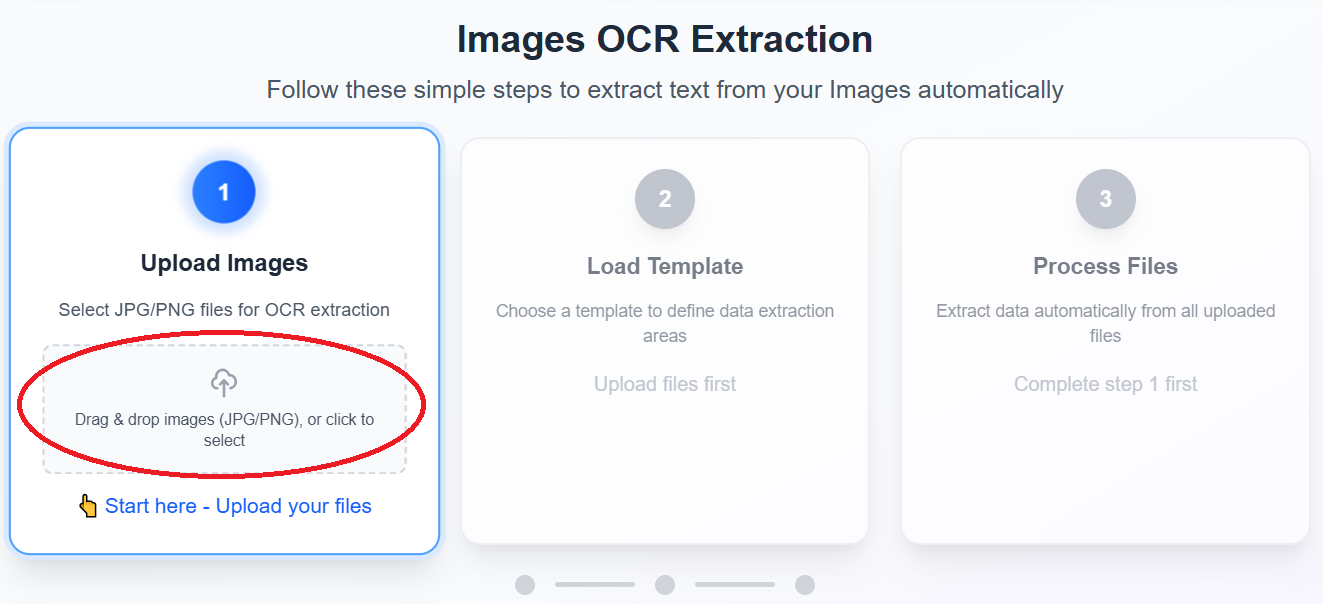
Step 8: Upload multiple challan images
Select all images or scanned PDFs for this batch.
Step 9: Load your e-challan template
Load the saved template so the same bounding boxes run on every file.
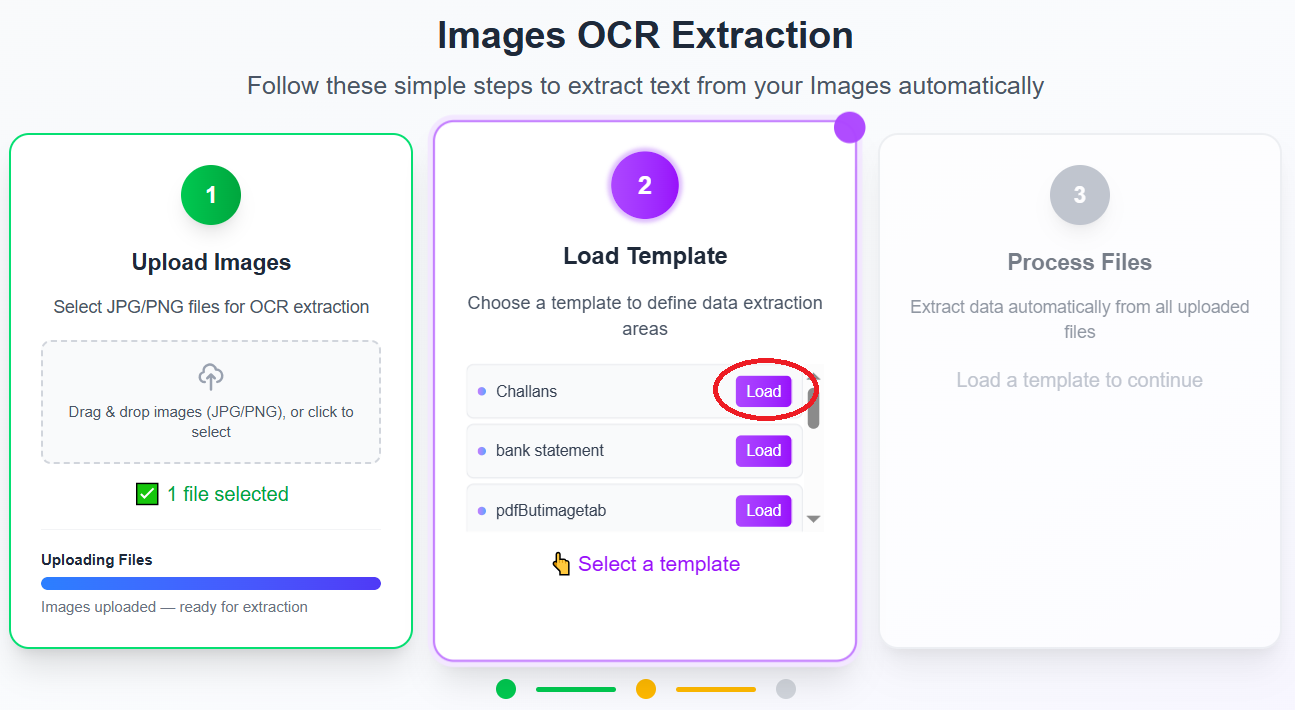
Step 10: Batch OCR export to Excel
Choose Excel and click Process files. ExtractGrid runs batch ocr pdf / image recognition on each file and compiles structured output—your pdf to excel ocr software workflow without manual typing.
Tips for better OCR results
- Resolution: Use the highest quality scan or photo available.
- Consistency: All challans in a batch should share the same form layout.
- Verify boxes: OCR mistakes are easier to fix at template setup than after a batch operation. See verify bounding box text.
- Low quality images: Expect more errors; re-scan when possible. Read more →
Related guides
| Guide | Use when |
|---|---|
| Batch PDF Text Extraction & OCR (complete guide) | When to use OCR vs text extraction and export options |
| How to Convert Bank Statement PDF to CSV | Digital bank statements and CSV export |
| How to Extract Text from Invoice PDF to Excel | Digital vendor invoices |
| How to Convert PDF Balance Sheet to Excel | Financial PDFs with selectable text |
How to extract text from image files at scale: one OCR template, unlimited batch runs. Try ExtractGrid batch OCR.