How to Convert Bank Statement PDF to CSV (Step-by-Step Guide)
Part of our Batch PDF Text Extraction & OCR Guide — the complete overview of template-based batch extraction and export to Excel or CSV.
Bank reconciliation should not mean typing every transaction by hand. This tutorial shows how to convert PDF bank statement to CSV using ExtractGrid: create a template on one sample statement, then batch process dozens of statements into a consistent pdf to csv bank statement file ready for import.
If you need Excel instead of CSV, the same template works—only the output format changes. Many users search for a bank statement pdf to excel converter; this workflow covers both pdf to excel bank statement and bank statement pdf to csv export.
Before you start
- Use digital PDF statements when possible (selectable text)—extraction is faster than OCR.
- Ensure all statements in your batch share the same layout (same bank template, orientation, and margins).
- Decide which fields you need: date, description, debit, credit, balance, reference number, etc.
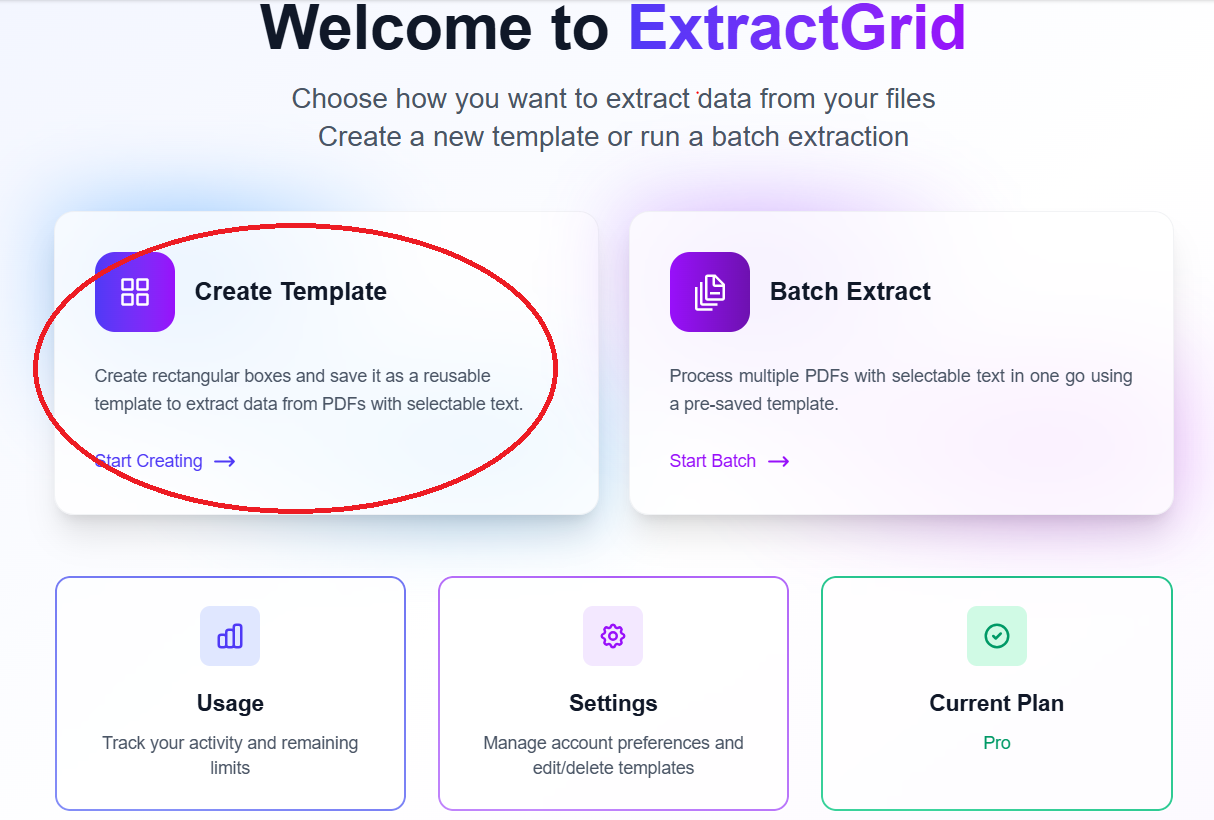
Step 1: Create a template from the dashboard
From the ExtractGrid dashboard, click Create Template to open the template editor.
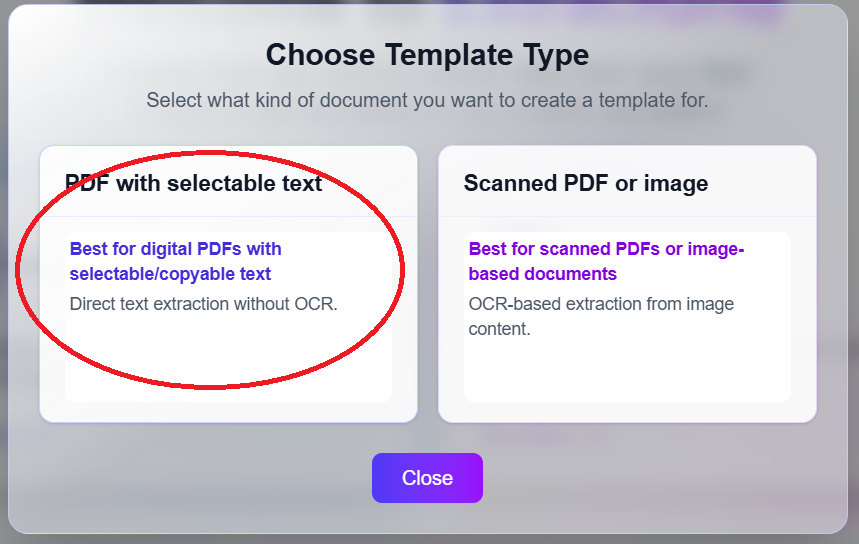
Step 2: Choose PDF with selectable text
For standard bank PDF exports, select PDF with selectable text. This uses direct pdf text extraction rather than OCR—ideal for statements downloaded from online banking.
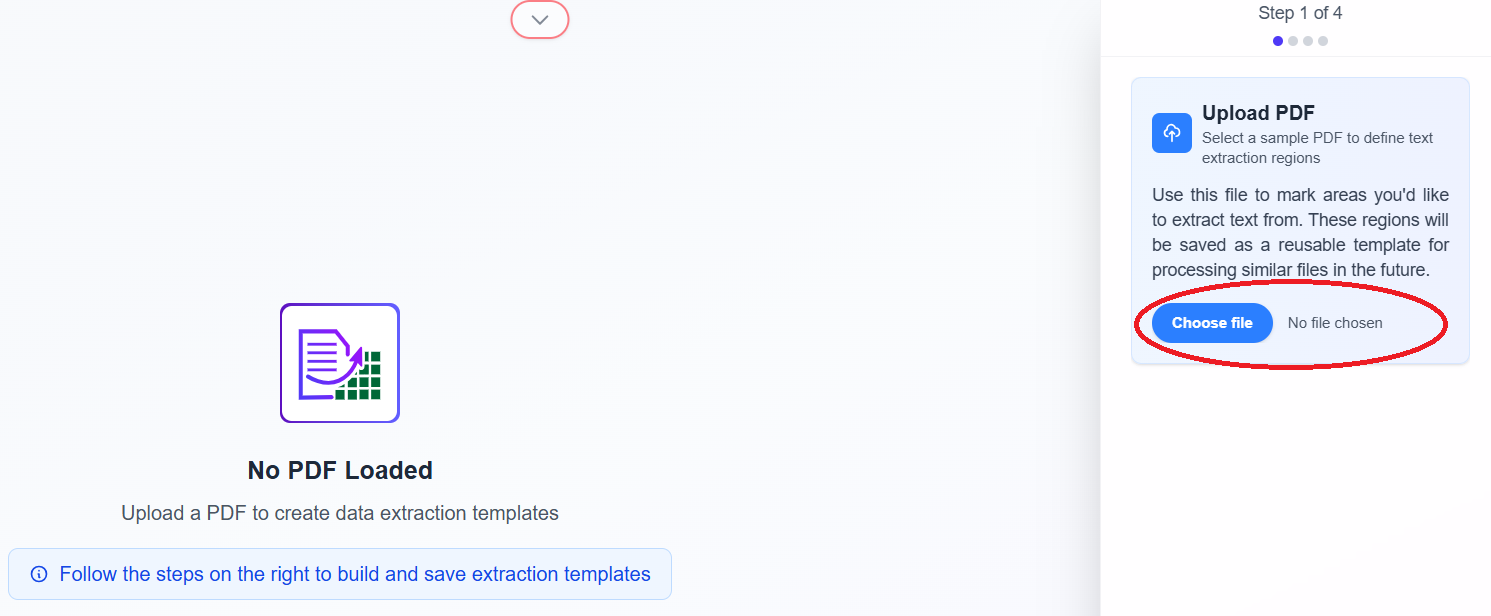
Step 3: Upload a sample bank statement
Click Choose file and upload one representative statement. You will draw bounding boxes on this file to define where each field lives on every future statement.
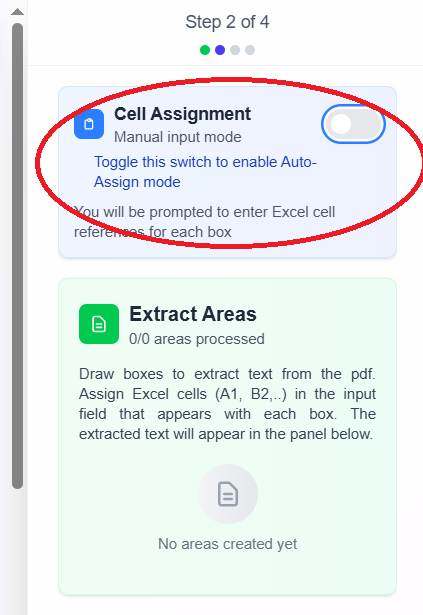
Step 4: Enable manual cell assignment
Toggle Cell assignment to manual mode so you control exactly which CSV column or Excel cell each transaction field maps to.
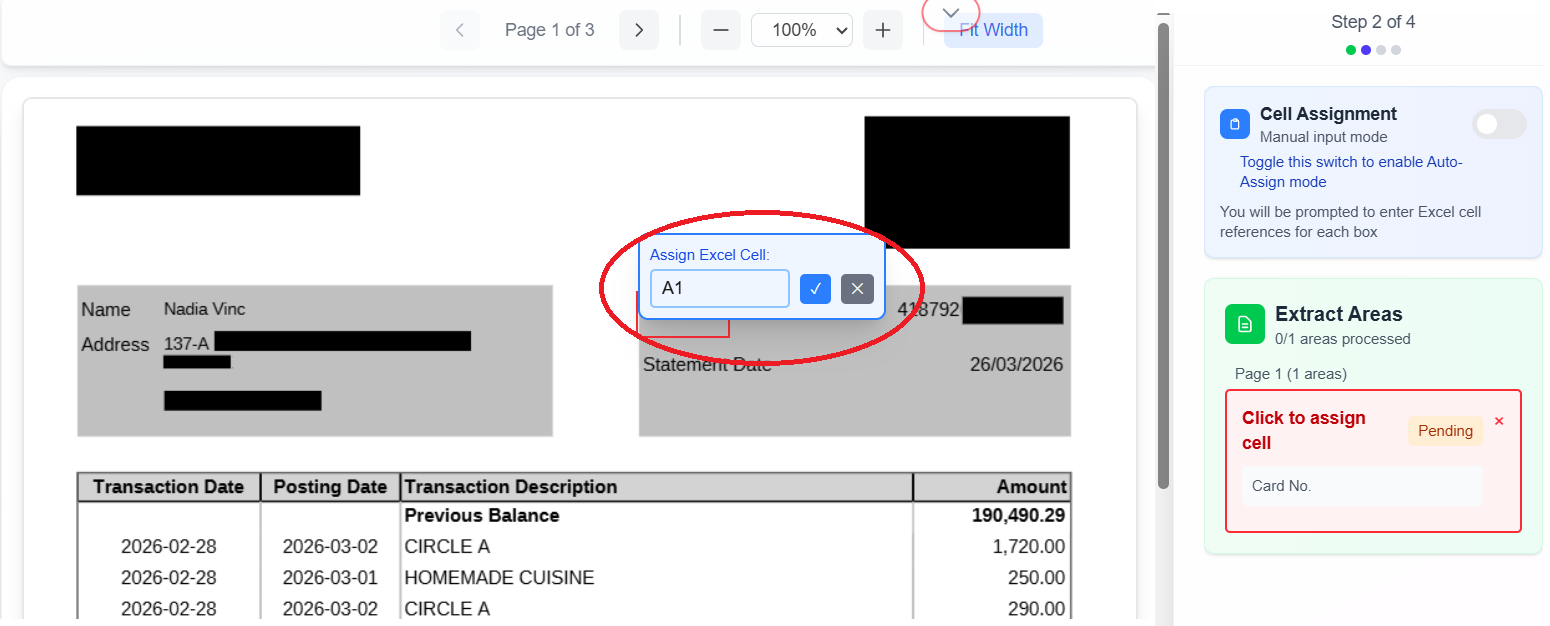
Step 5: Assign Excel cells to each field
For each bounding box, open the cell assignment popup and enter the target cell (for example, A1 for Date, B1 for Description). This mapping drives your convert pdf bank statement to csv output structure.
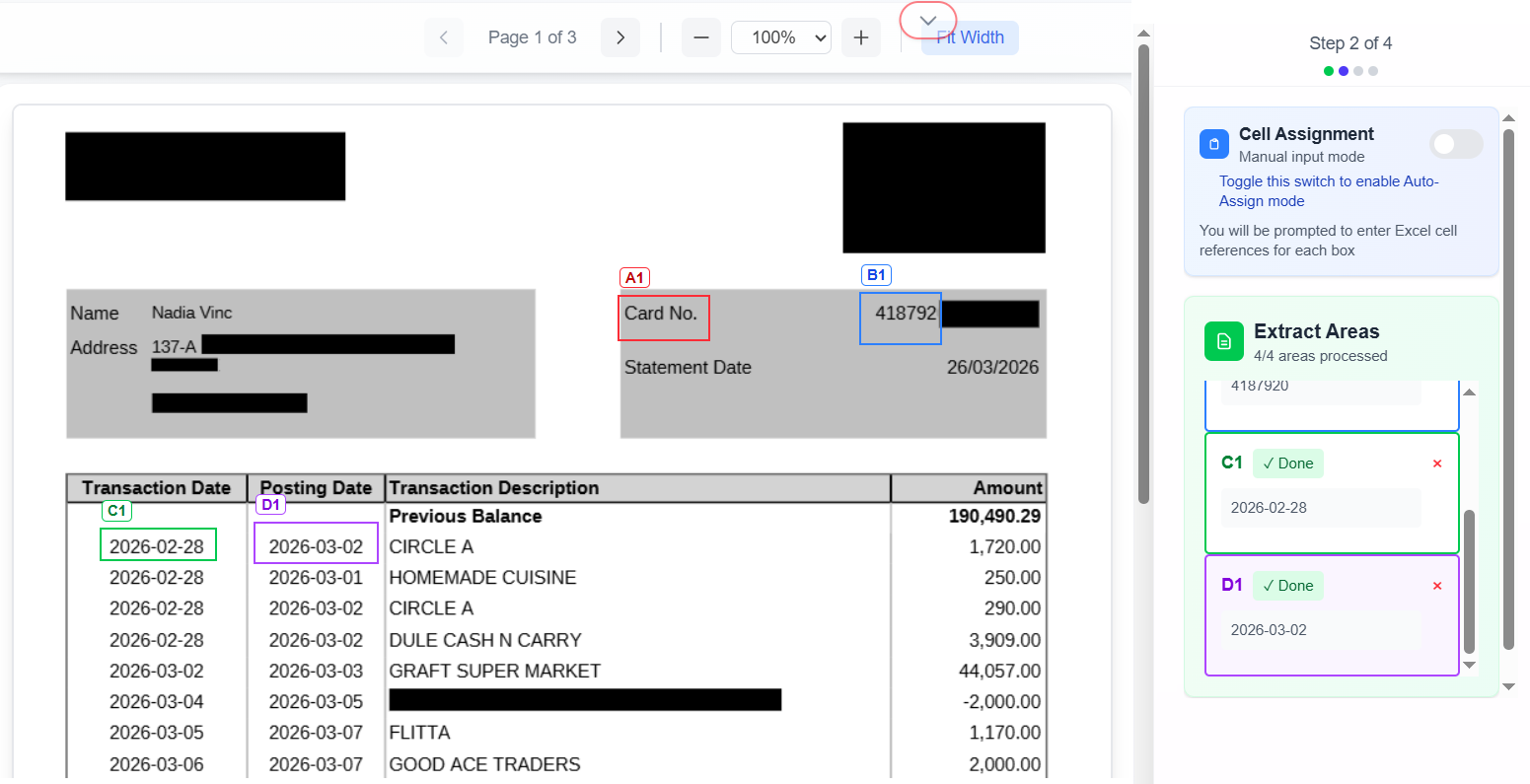
Step 6: Verify extracted text in the sidebar
After drawing boxes, check the right sidebar—it shows the text extracted from each region. Confirm dates, amounts, and descriptions are correct before saving. Wrong boxes here mean wrong CSV rows in batch mode.
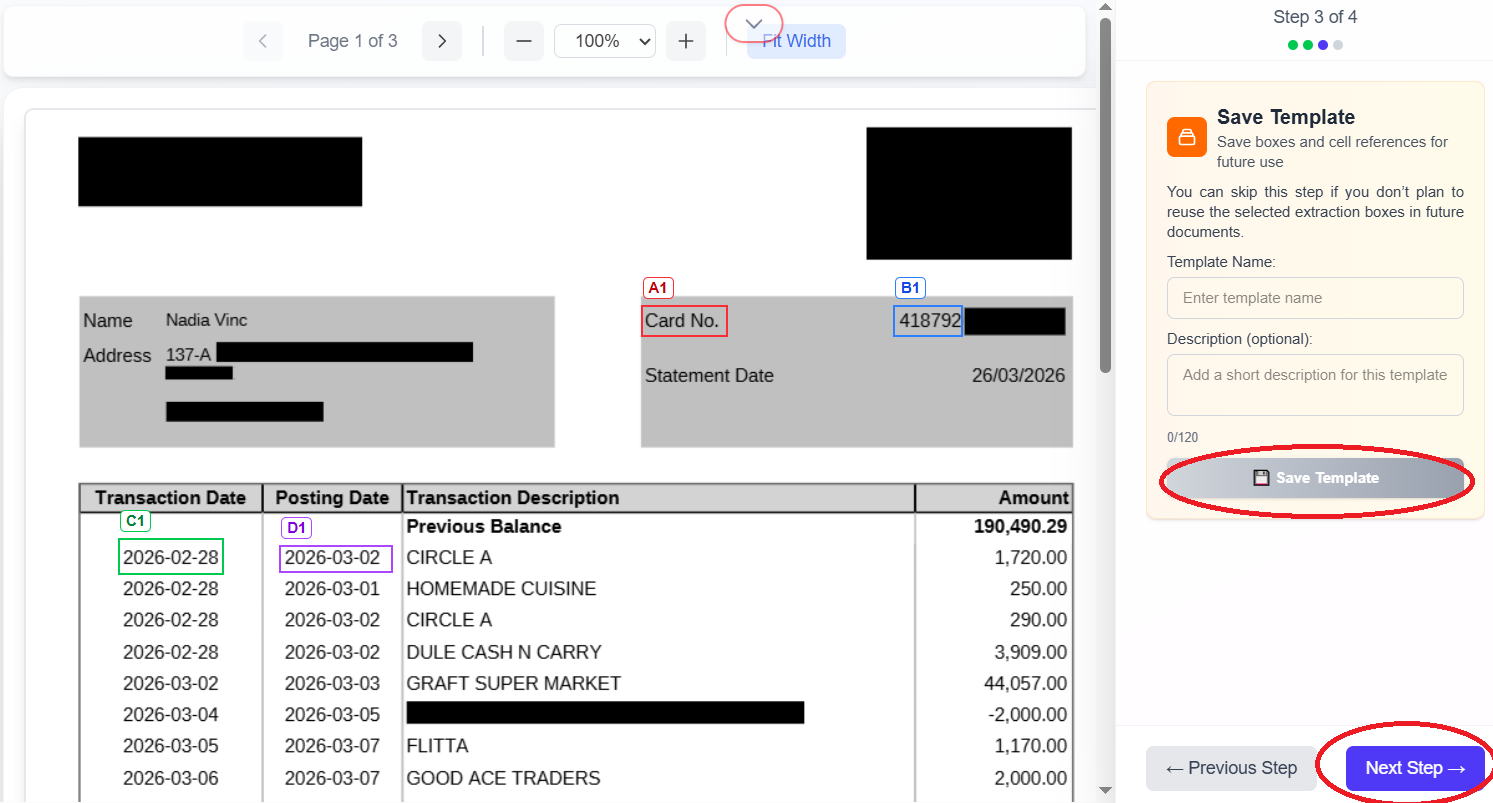
Step 7: Save the template
Name your template (for example, hdfc-statement-csv) and click Save Template, then Next step to continue toward processing.
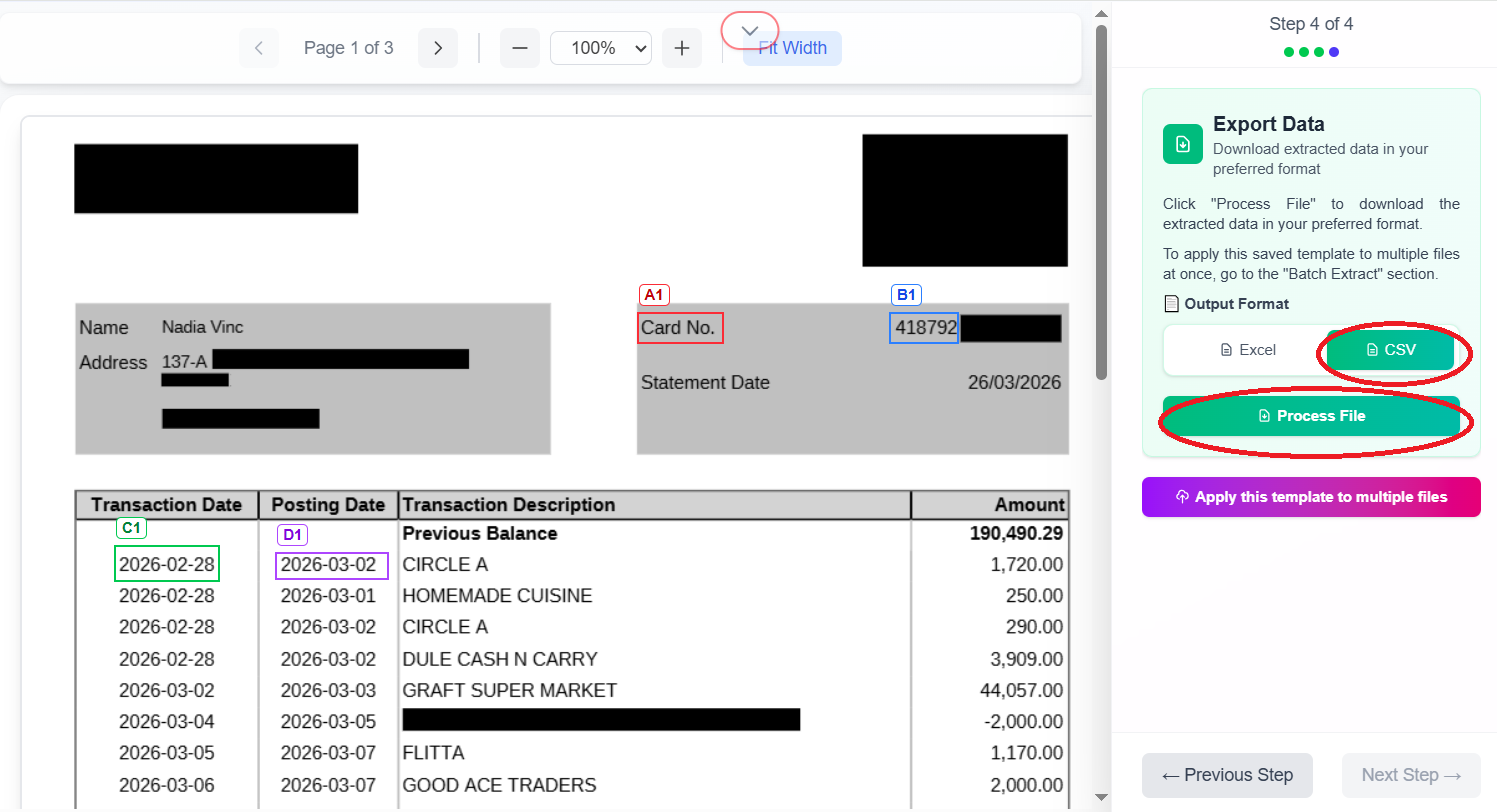
Step 8: Test with CSV output (single file)
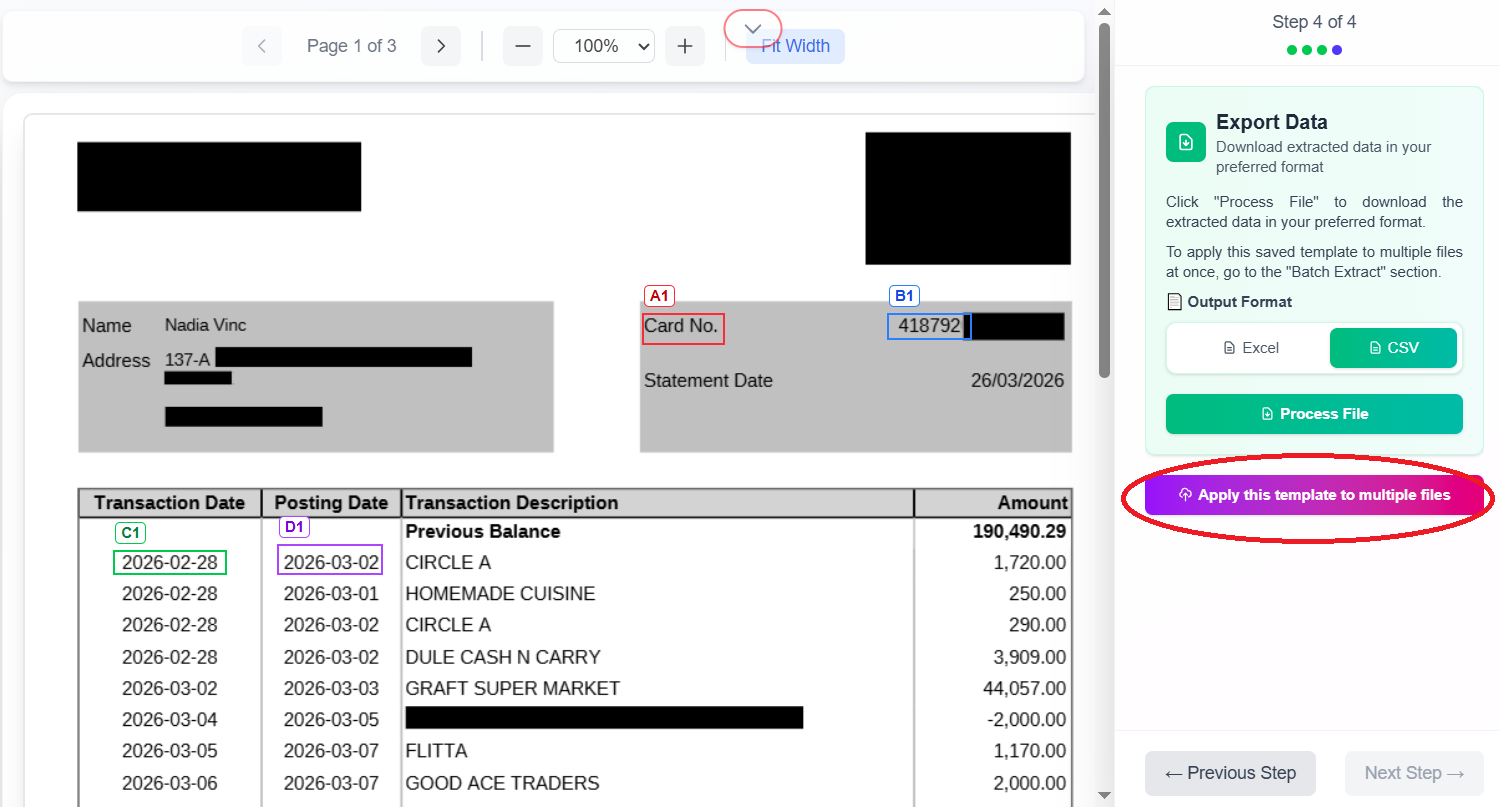
On the processing screen, select CSV as the output format and click Process files to validate your template on the sample statement.
Step 9: Open batch processing
Once the template works on one file, click Apply this template to multiple files to move to the batch workflow.
Step 10: Upload multiple statements
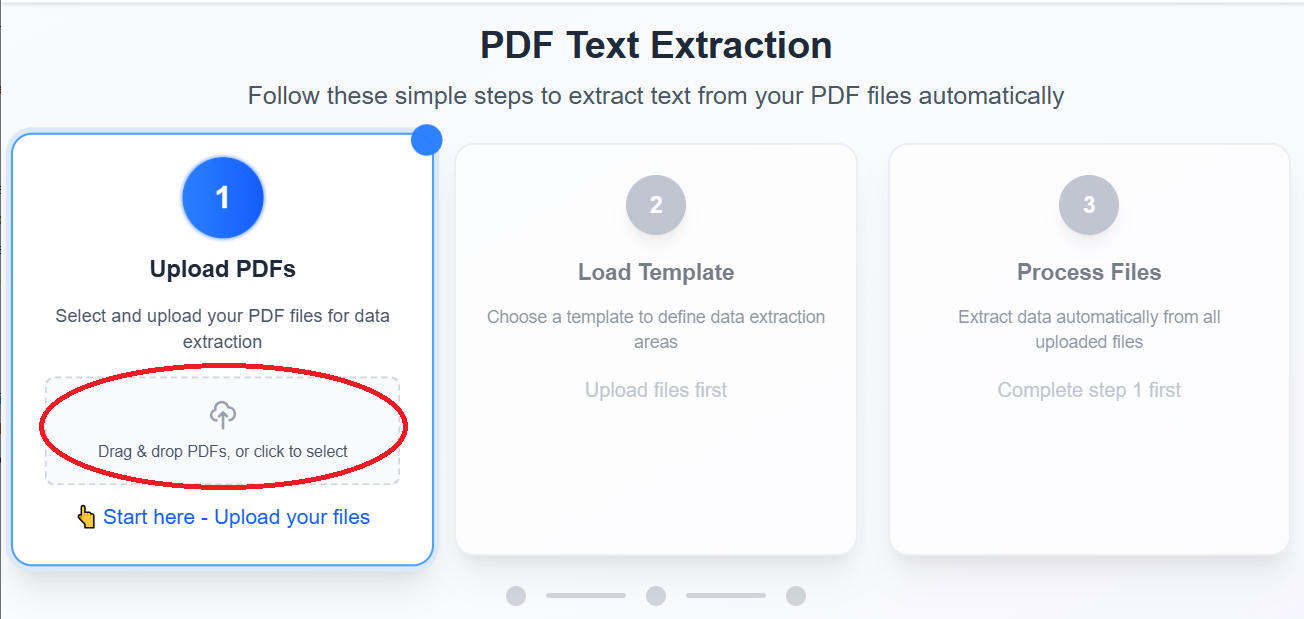
In batch mode, click Upload files and select all bank statement PDFs for this run.
Step 11: Load your saved template
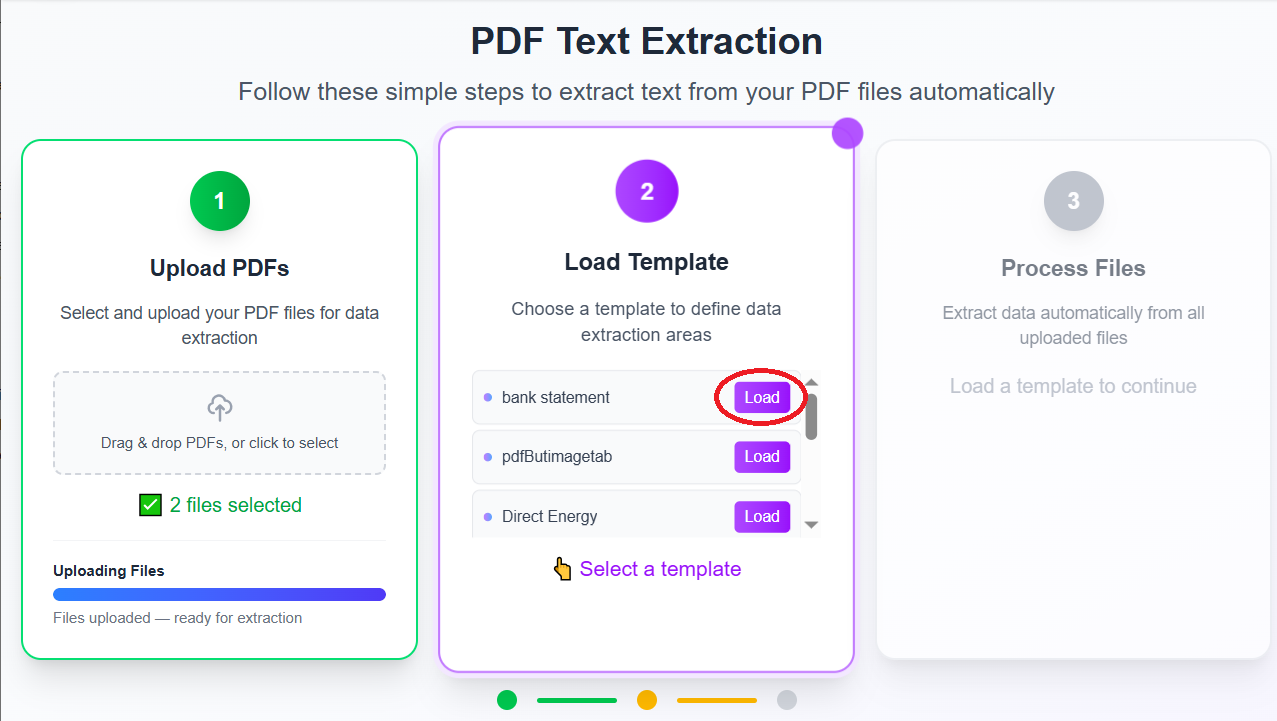
Click Load template and select the bank statement template you created. The same bounding boxes apply to every file in the batch.
Step 12: Process the batch as CSV
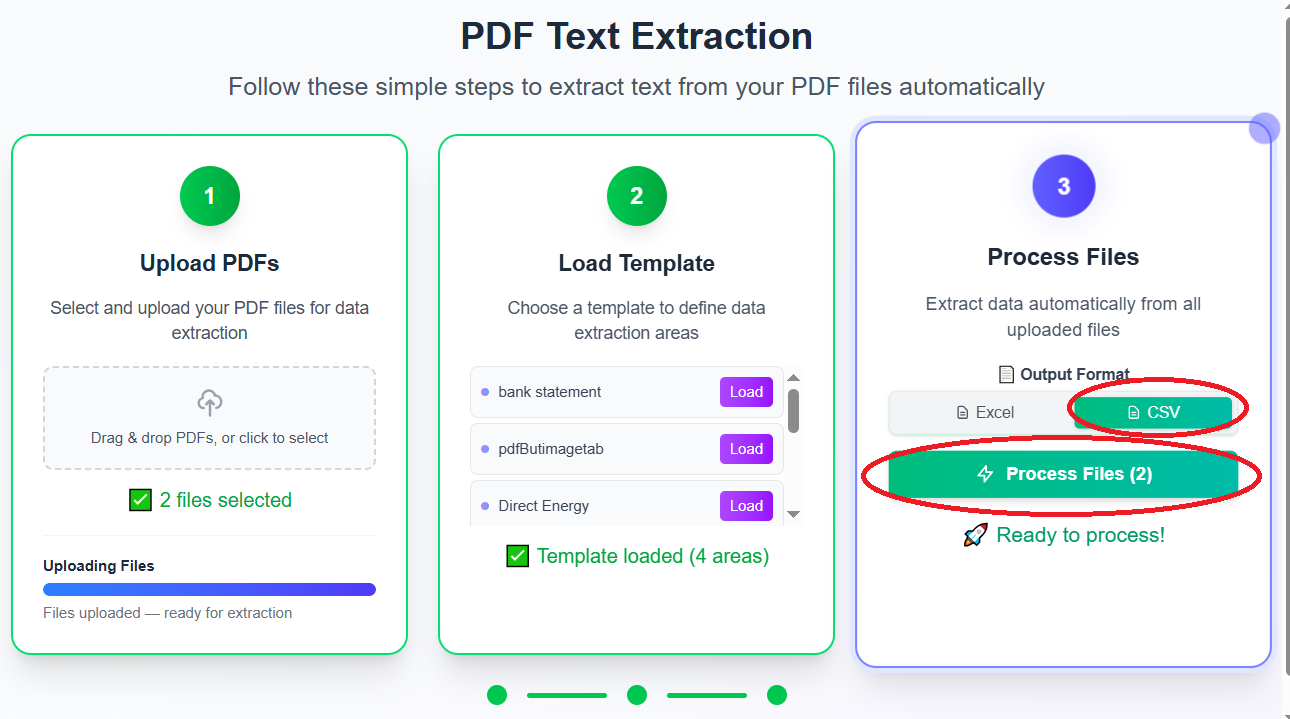
Choose CSV format and click Process files. ExtractGrid runs pdf text extraction on each statement and produces downloadable CSV output—your pdf to csv bank statement export at scale.
Tips for bank statement PDF to Excel or CSV
- Same layout only: Mixed bank formats need separate templates.
- Column headers: Assign row 1 cells for headers if your import tool expects them.
- Verify a test batch of 3–5 statements before processing a full month.
- Digital vs scan: Scanned paper statements require OCR—see our OCR image extraction guide.
Related guides
| Guide | Use when |
|---|---|
| Batch PDF Text Extraction & OCR (complete guide) | Overview of templates, batch modes, Excel vs CSV |
| How to Extract Text from Invoice PDF to Excel | Vendor invoices and accounts payable |
| How to Convert PDF Balance Sheet to Excel | Financial statements and balance sheets |
| OCR Data Extraction from Images | Scanned statements and photo-based documents |
Ready to scale? Create a free account and run your first bank statement pdf to csv batch in minutes.