How to Convert PDF Balance Sheet to Excel (Batch Text Extraction Guide)
Part of our Batch PDF Text Extraction & OCR Guide — the complete overview of template-based batch extraction and export to Excel or CSV.
Financial teams often need to convert PDF balance sheet to Excel for analysis, consolidation, or reporting—but copy-paste breaks table alignment and formulas. ExtractGrid uses pdf text extraction on digital PDFs (or batch ocr on scans) with a template that maps each line item to the correct Excel cell.
This tutorial walks through a balance sheet workflow. The same steps apply to income statements, trial balances, and other structured financial PDFs with consistent layouts.
When to use this workflow
- Monthly or quarterly balance sheets exported from accounting software as PDF
- Multiple entities with the same report format
- Need for cell-mapped Excel output (not a raw text dump)
- Batch processing across periods (Q1, Q2, Q3…) with one template
Step 1: Create a template
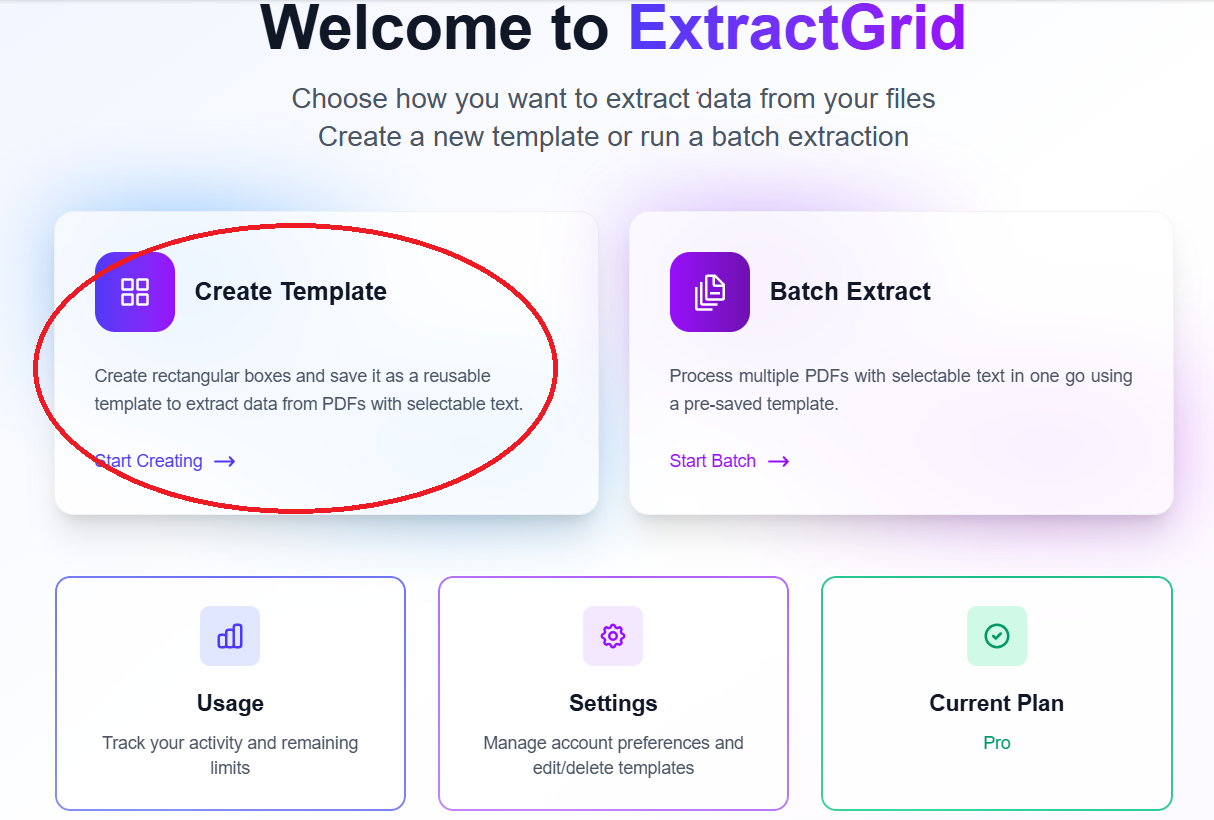
From the dashboard, click Create Template.
Step 2: Choose PDF with selectable text
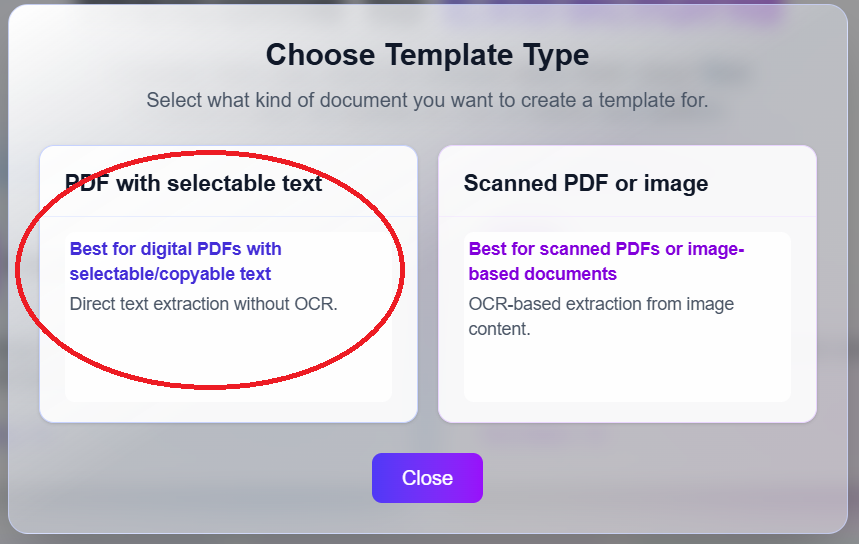
For PDFs exported from QuickBooks, Xero, Tally, or similar tools, select PDF with selectable text. This is the most accurate path for pdf text extraction on financial reports.
Step 3: Upload a sample balance sheet
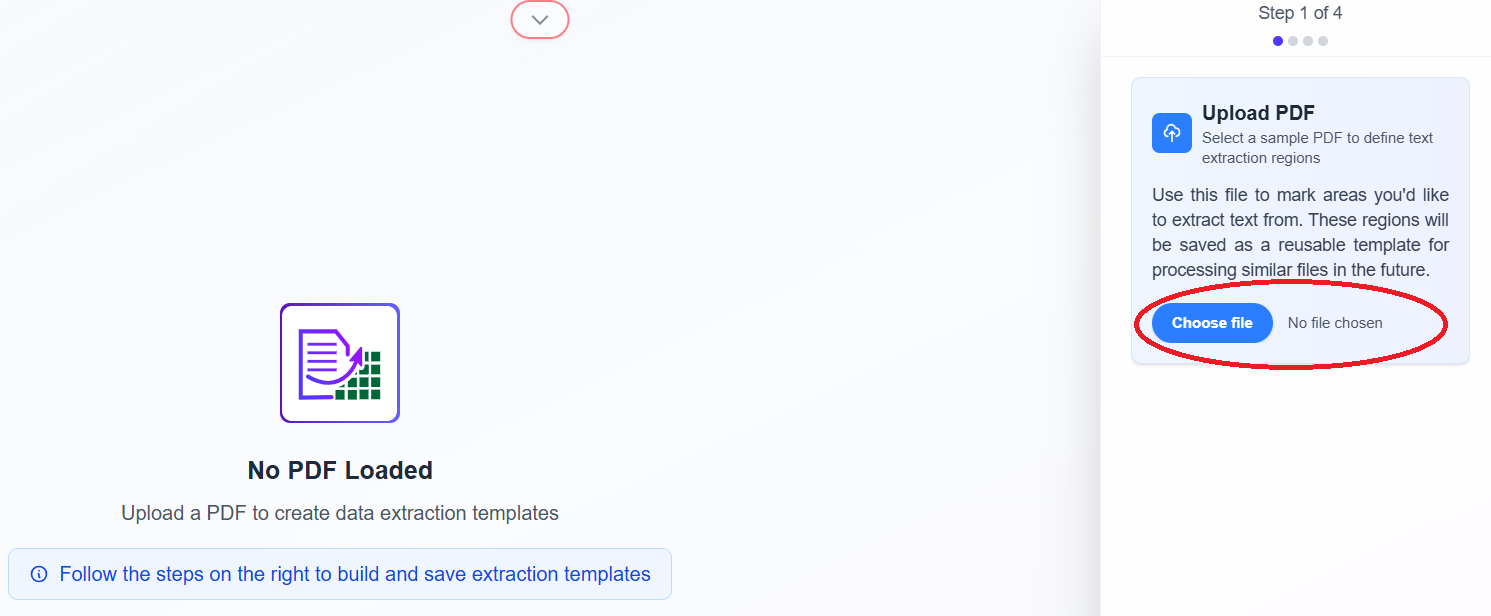
Upload one representative balance sheet PDF to define bounding box positions.
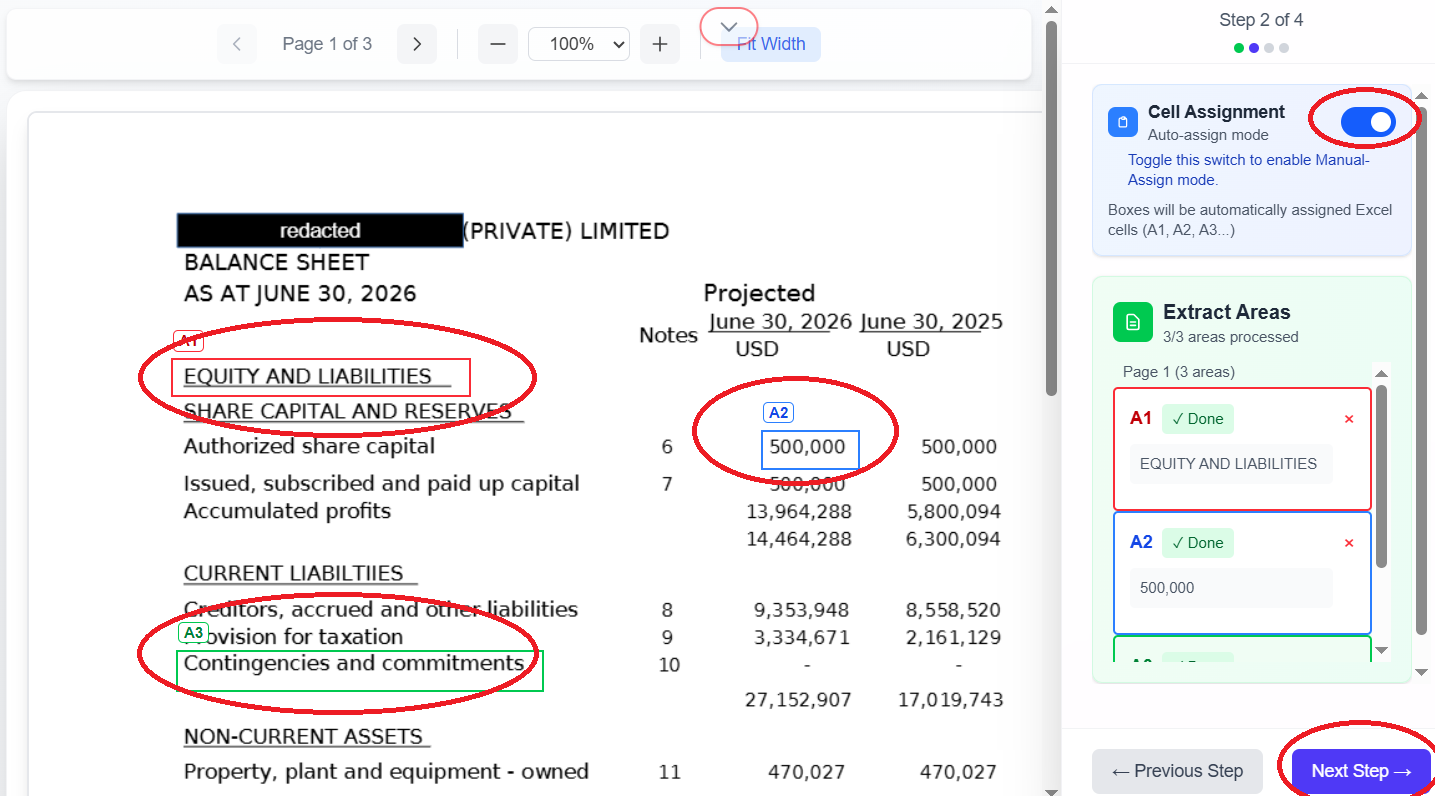
Step 4: Enable automatic cell assignment
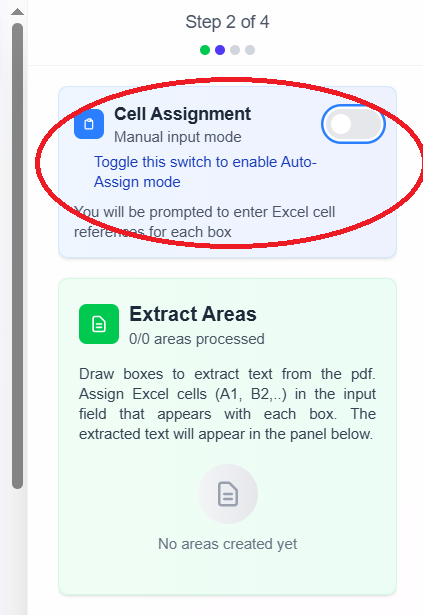
Financial tables often have many line items in sequence. Automatic cell assignment maps each bounding box to the next available cell.
Step 5: Verify cells and extracted amounts
Check the right sidebar: each box should show the correct figure (cash, receivables, payables, totals). Misaligned boxes are the main cause of wrong Excel output in batch runs.
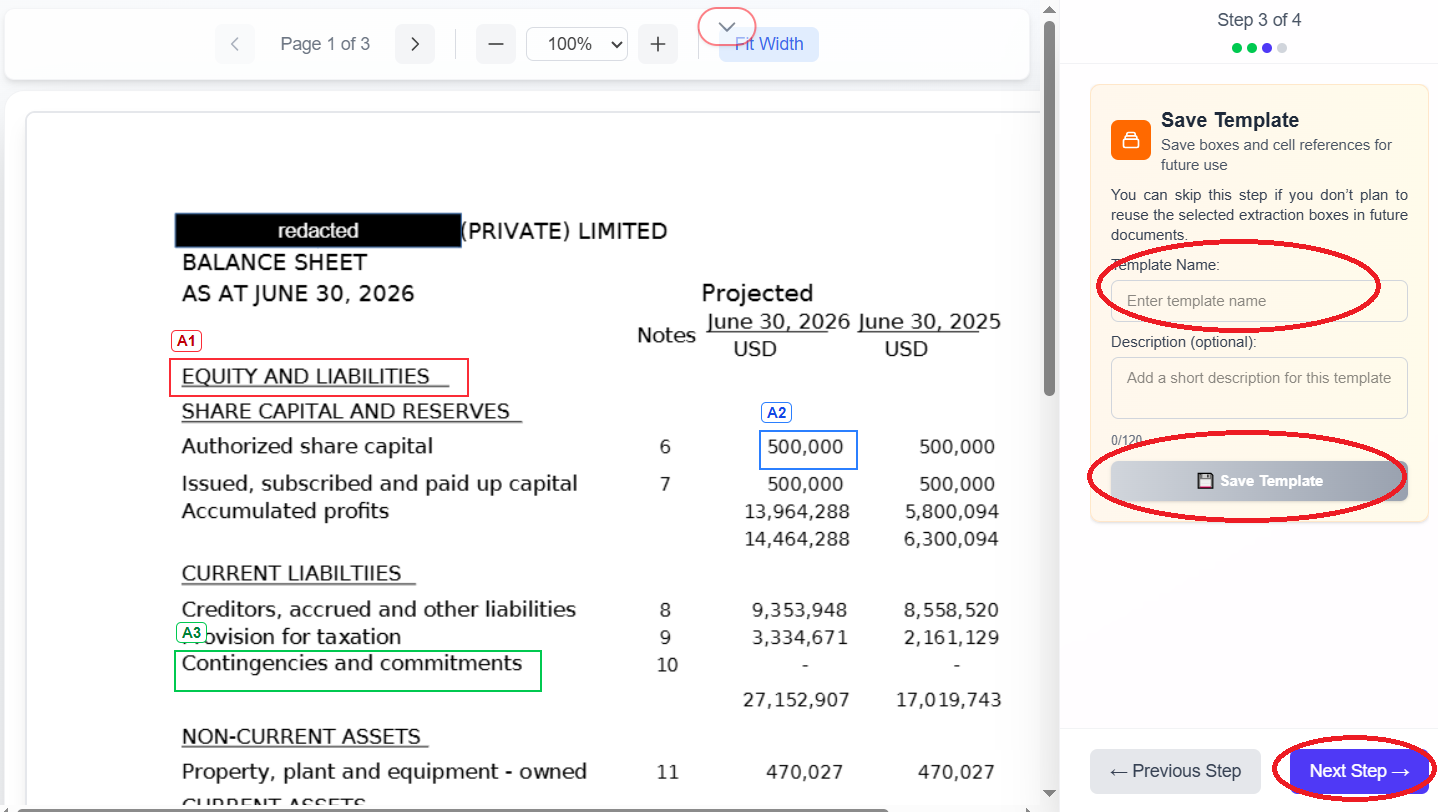
Step 6: Save the template
Name it clearly (for example, balance-sheet-q1-2026) and proceed with Save Template and Next step.
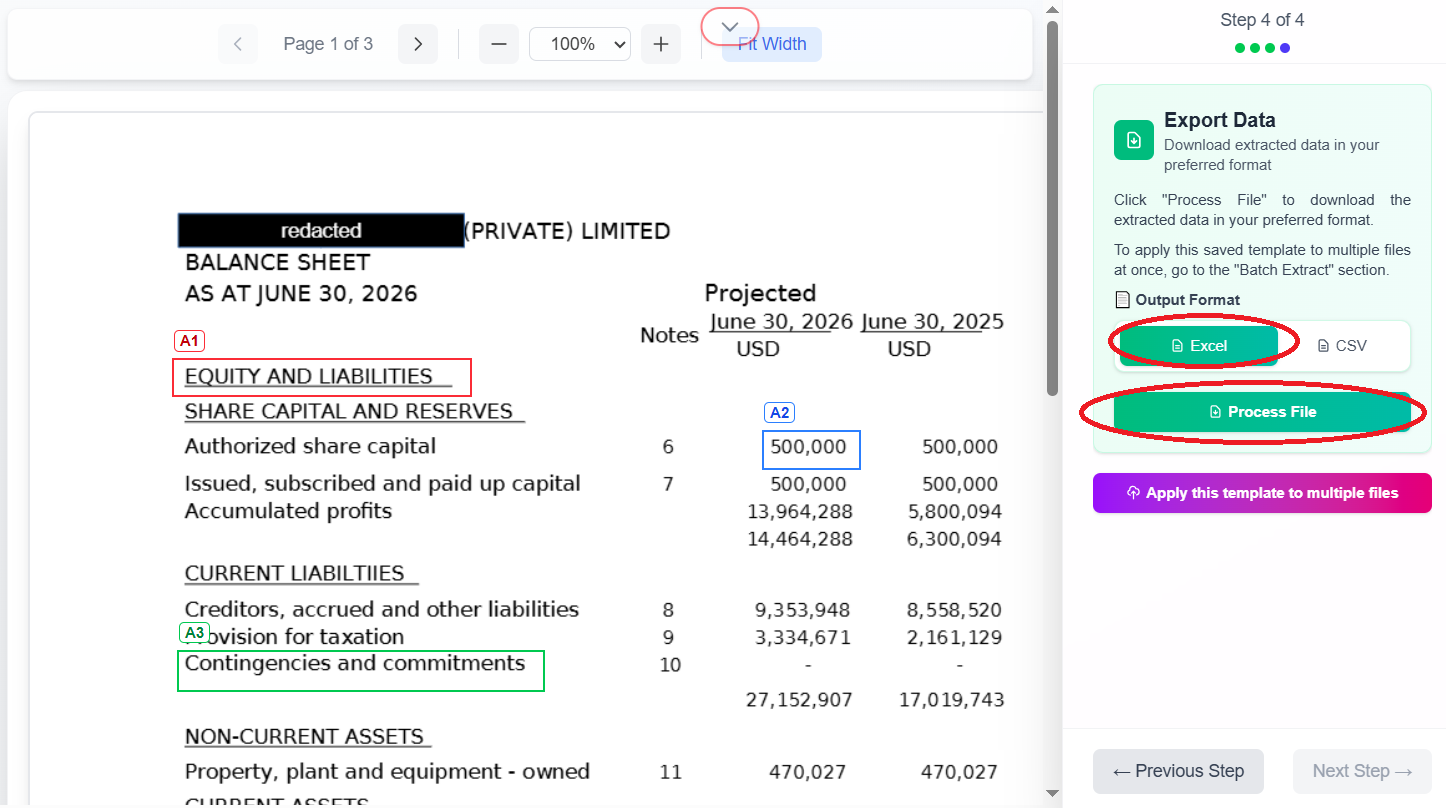
Step 7: Test single-file Excel export
Select Excel output and run Process files on your sample to confirm cell mapping.
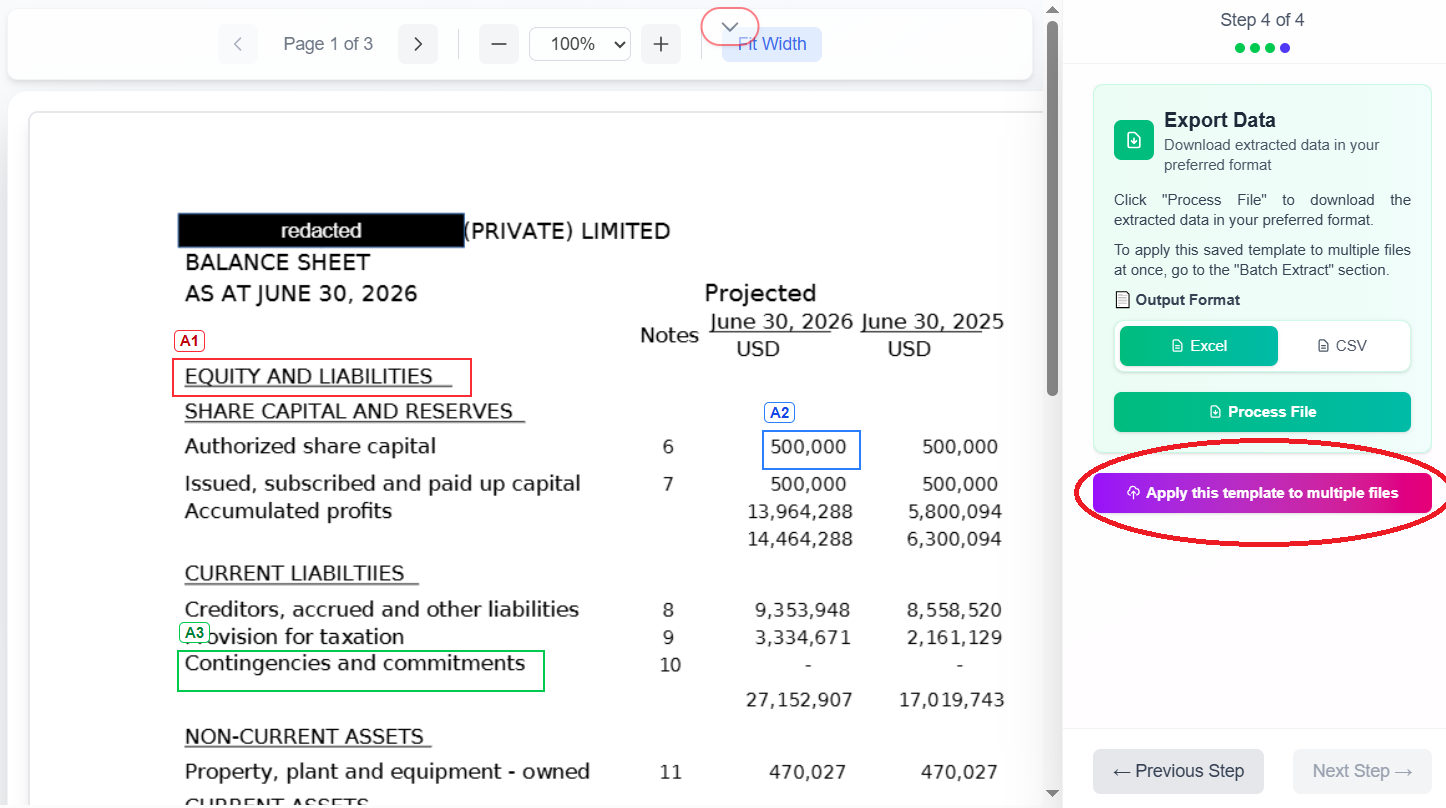
Step 8: Move to batch processing
Click Apply this template to multiple files when the single-file test looks correct.
Step 9: Upload multiple balance sheet PDFs
Upload all reports that share this layout—e.g. monthly sheets for the year.
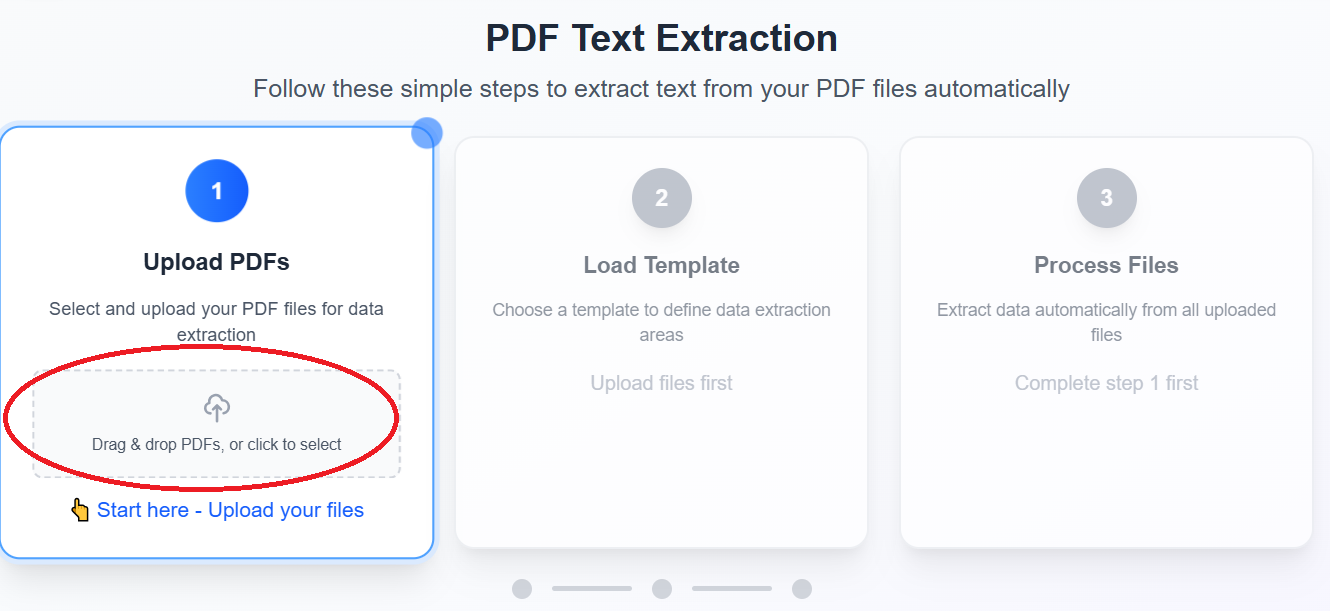
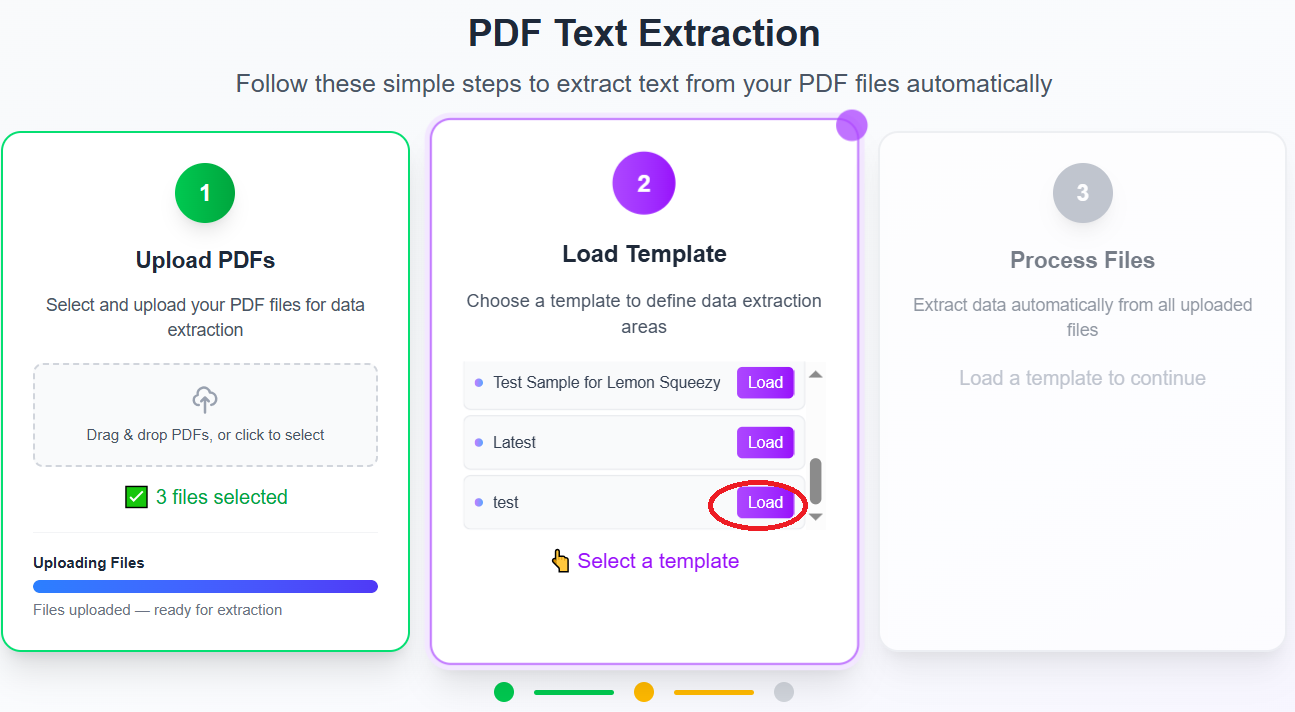
Step 10: Load your balance sheet template
Select the saved template so bounding boxes apply to every file.
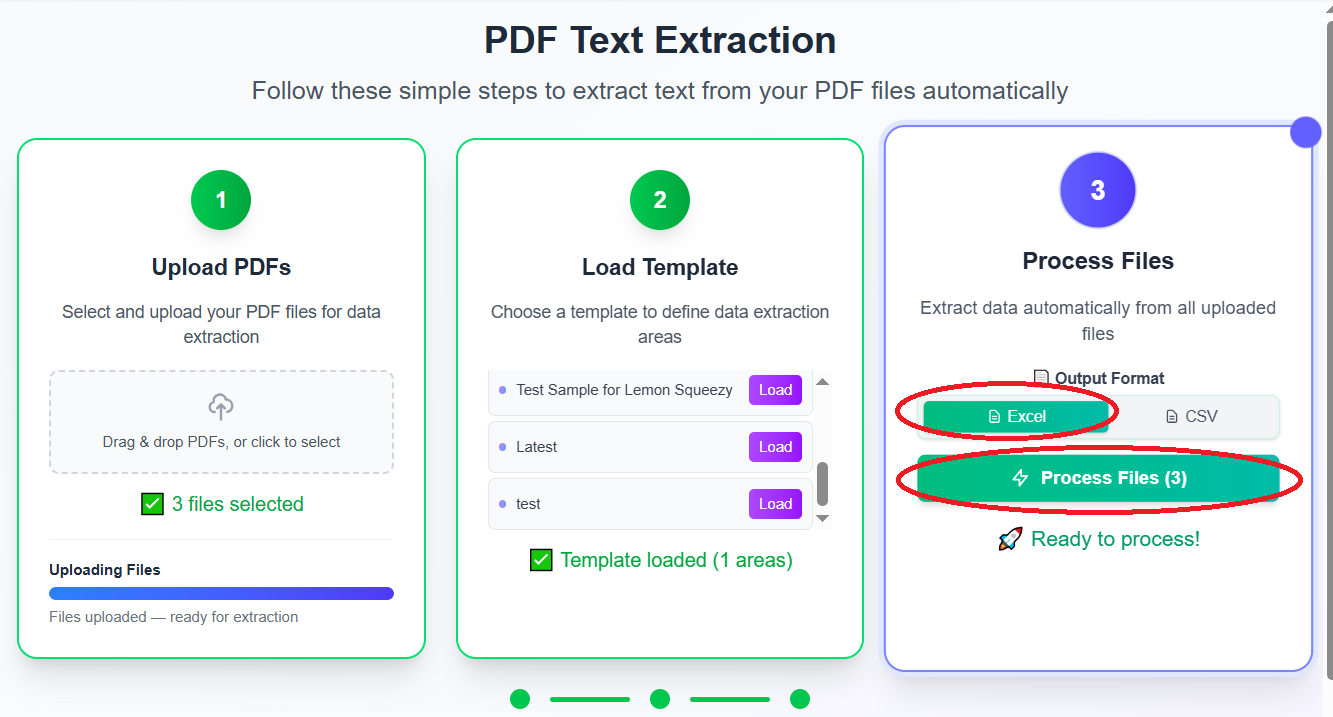
Step 11: Batch export to Excel
Choose Excel and click Process files. ExtractGrid performs batch text extraction across all balance sheets—far faster than manual how to export pdf in excel copy-paste.
Scanned balance sheets and OCR
If your balance sheet is a scan or image, switch to Scanned PDF or image mode for batch ocr pdf processing. Use high-resolution scans for best results. See OCR data extraction from images for the full OCR walkthrough.
Related guides
| Guide | Use when |
|---|---|
| Batch PDF Text Extraction & OCR (complete guide) | Choosing text extraction vs OCR and export formats |
| How to Convert Bank Statement PDF to CSV | Bank transactions and CSV import workflows |
| How to Extract Text from Invoice PDF to Excel | Vendor invoices and AP processing |
| OCR Data Extraction from Images | Scanned financial documents and photos |
Use batch ocr software only when you must—digital PDFs should use text extraction first. Start converting balance sheets to Excel with ExtractGrid.