Batch PDF Text Extraction & OCR: The Complete Guide to Excel and CSV Export
If you have ever tried to copy and paste from PDF to Excel, you already know the problem: tables break, columns shift, and a stack of similar documents turns into hours of manual cleanup. ExtractGrid solves this problem using Batch PDF text extraction. Instead of converting an entire document blindly, you mark the exact regions you need—once—and reuse that layout across dozens or hundreds of files.
This guide explains how ExtractGrid works as an app to convert PDF to Excel or PDF to CSV, when to choose batch PDF text extraction over batch OCR, and how to go from a single file to a full batch processing workflow.
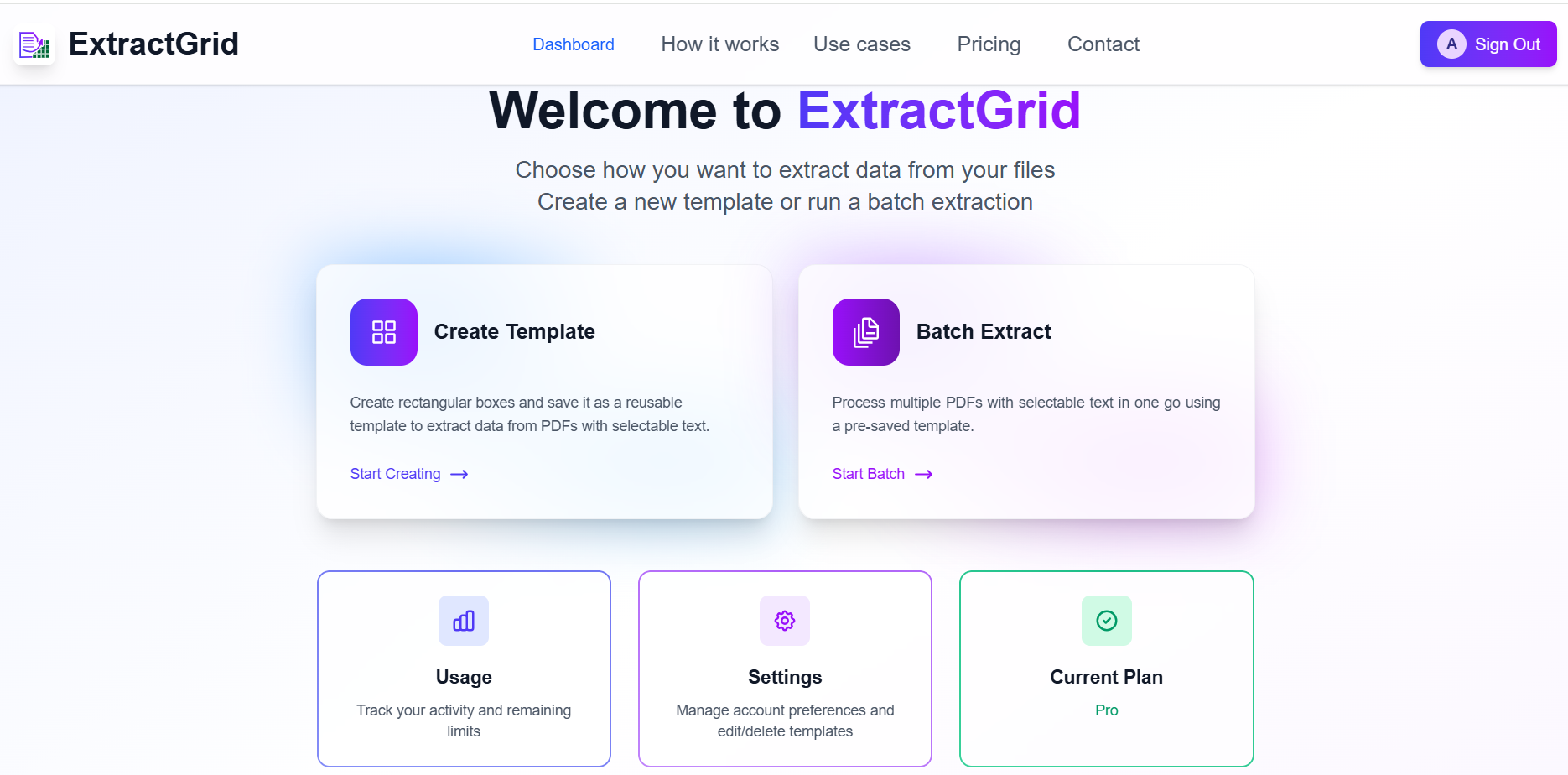
1. What text extraction from specific area means(vs text extraction from full document)
Text extraction means you define specific areas on a page—bounding boxes around invoice numbers, dates, totals, table rows, or any field—and ExtractGrid pulls text only from those regions across many files. The output lands in the Excel cells or CSV columns you assign, not as a messy dump of the whole page.
That is fundamentally different from typical full-document OCR or generic PDF to Excel AI converter tools that try to interpret the entire layout automatically. Those tools can work for one-off files, but they are impractical if you require text from specific fields only. ExtractGrid allows you to export text from these specific fields to spreadsheets cells of your choice.
With ExtractGrid, the workflow is template-based batch extraction: mark once, reuse everywhere. You get the precision of manual field selection with the speed of automation—without relying on fragile copy-paste from PDF to Excel.
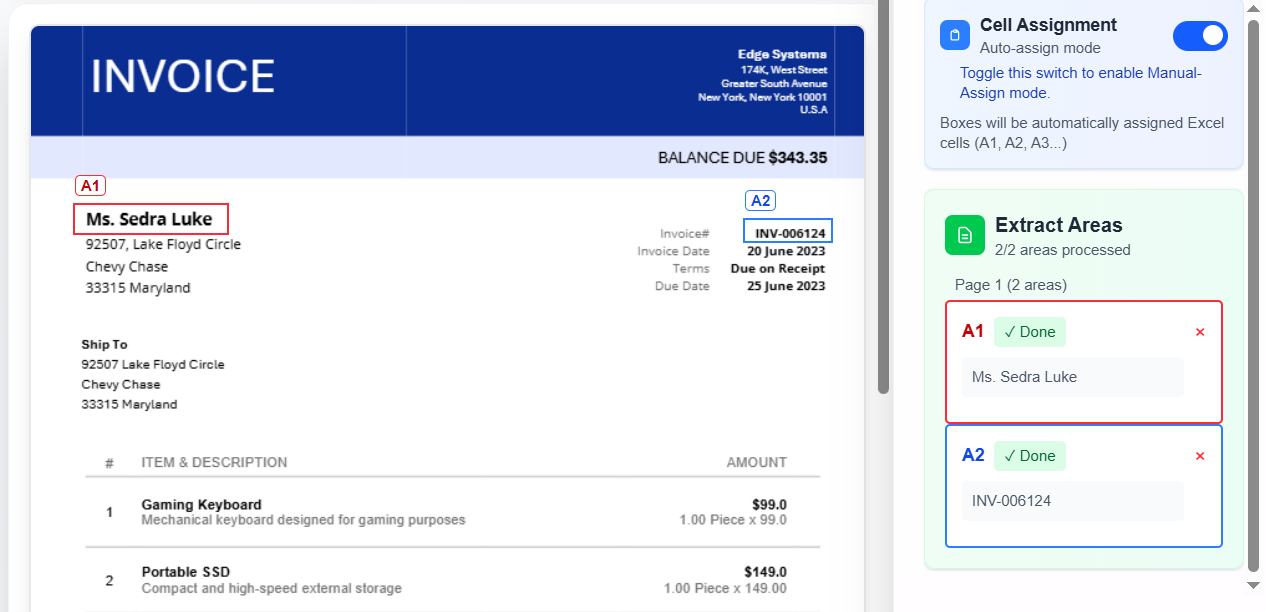
In short: full-document tools guess the structure; ExtractGrid enforces the structure you define.
2. When to use PDF text extraction vs OCR (digital PDF vs scans/images)
Not every file needs OCR. ExtractGrid offers three processing modes on the batch screen—choose based on how your files were created:
| File type | Best mode | Why |
|---|---|---|
| Digital PDF (selectable text) | PDF text extraction | Text is already embedded; extraction is faster and more accurate |
| Scanned PDF (image-based pages) | OCR for scanned PDF | No embedded text—OCR reads pixels from the scan |
| Images (JPG, PNG, photos) | OCR for images | Same as scans; requires OCR on image files |
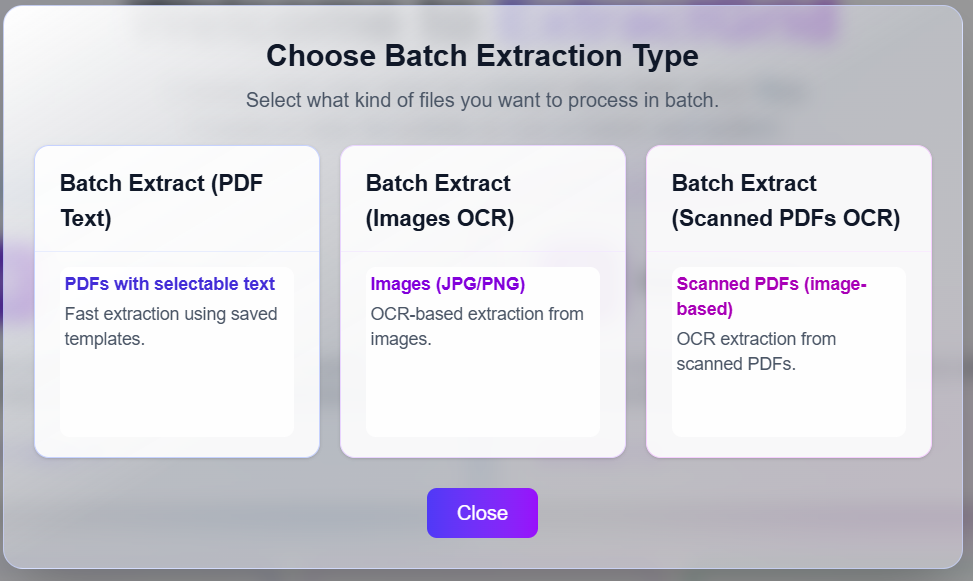
Digital PDFs → PDF text extraction
If you can highlight text in your PDF viewer, use PDF text extraction. This is the fastest path for extract data from PDF to Excel when statements or reports were exported from accounting software, banks, or ERP systems. The extracted text is 100% accurate.
Scans and photos → batch OCR
Scanned PDFs and images have no real text layer—only pictures of text. That is when you need OCR PDF processing or OCR software for images. ExtractGrid uses strong recognition models, but quality still matters: higher-resolution scans produce better results (see our Help Centre article on OCR and image resolution).
Why OCR is needed for scanned PDFs
A scanned PDF is essentially a stack of images wrapped in a PDF file. PDF text extraction cannot read pixels—it only reads embedded characters. OCR (Optical Character Recognition) converts those pixels into text so your bounding boxes can capture invoice numbers, challan details, or table values. Without OCR, there is nothing to extract from a scan.
3. Template setup: mark once, reuse
Templates are the core of efficient text extraction at scale. You upload a sample document, draw bounding boxes around each field, assign output cells, and save the template for future batches.
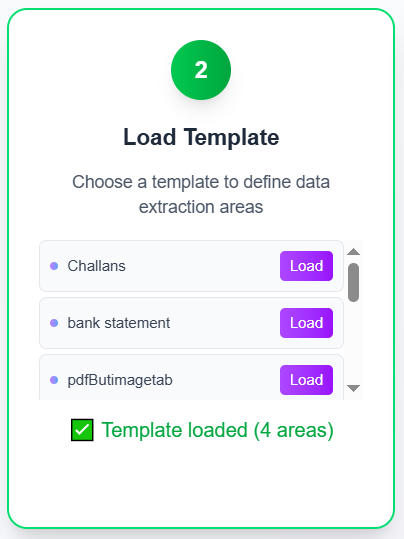
Template setup steps
- Create a template from the dashboard.
- Upload a sample PDF or image that represents your document type.
- Draw bounding boxes around each value you need.
- Assign Excel cells (manually or automatically).
- Verify extracted text in the right sidebar for each box.
- Save the template with a clear name (for example,
bank-statement-csvorinvoice-excel).
Important: Every file in a batch should share the same layout—page size, field positions, and formatting. If layouts differ, create separate templates. See why consistent layout matters.
Once saved, you never redraw boxes for that document type again—you load the template and apply it to the whole batch.
4. Batch processing workflow
After your template is ready, batch processing follows four steps:
- Upload multiple files — PDFs or images in one batch.
- Load your template — applies saved bounding boxes to every file.
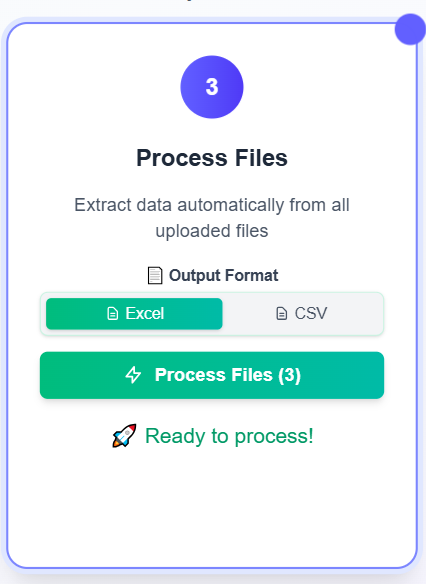
- Choose output format — Excel or CSV.
- Process files — ExtractGrid runs text extraction or OCR on each file and builds your export.
From the dashboard you can start from Create Template (single-file setup) or go straight to batch processing if the template already exists. The same template powers both a one-file test run and a 100-file batch.
How fast does the whole process take?
Speed depends on file count, page count, and whether you use PDF text extraction or OCR:
- Digital PDFs (text extraction): Usually the fastest—often seconds per file for typical one- or two-page documents.
- Scanned PDFs and images (OCR): Takes longer because each region is recognized optically; larger batches run sequentially but still far faster than manual copy-paste.
- Template setup: A one-time cost of a few minutes; it pays back on every future batch.
For a realistic estimate, process 3–5 sample files first. That confirms accuracy and gives you a per-file timing baseline before running the full batch.
5. Export to Excel vs CSV
ExtractGrid lets you choose the output format at processing time. Pick the one that fits your next step—analysis in Excel, import into another tool, or database loading.
Excel export
Best when you:
- Want a .xlsx file that opens directly in Microsoft Excel or Google Sheets
- Need cell-mapped output (values placed in specific cells per your template)
- Are building reports, reconciliations, or balance-sheet summaries
Use Excel when your workflow is spreadsheet-first—common for invoice processing, balance sheets, and financial reports.
CSV export
Best when you:
- Need a lightweight, universal format for imports
- Are feeding data into accounting software, databases, or BI tools
- Want to turn PDF into CSV for bank statement transactions or line-item lists
CSV is often the right choice for bank statement PDF to CSV workflows and any pipeline that expects comma-separated rows rather than a formatted workbook.
PDF to Excel AI vs template-based extraction
Generic pdf to excel ai or pdf to excel ai converter tools infer layout with AI. ExtractGrid combines precise bounding boxes with extraction and OCR—you control exactly what lands in each cell. For recurring document types, template-based batch ocr and text extraction is usually more reliable than one-click AI conversion that varies file to file.
6. Document-specific guides
Ready to apply this workflow to a real document type? These step-by-step tutorials include screenshots for every stage—from template creation through batch export.
Guides by document type
| Document | Tutorial | Best for |
|---|---|---|
| Bank statements | How to Convert Bank Statement PDF to CSV | Transaction exports, bookkeeping imports, pdf to csv bank statement workflows |
| Invoices | How to Extract Text from Invoice PDF to Excel | Invoice processing, accounts payable, vendor bill data entry |
| Balance sheets | How to Convert PDF Balance Sheet to Excel | Financial statements, structured pdf text extraction to spreadsheet |
| Scanned forms & images | OCR Data Extraction from Images (E-Challan Example) | Extract text from an image, challans, photos, batch ocr pdf on scans |
Each guide is part of this pillar: they walk through the same template → batch → export pattern with document-specific tips and full screenshot walkthroughs.
7. FAQ
Why do PDFs and images need a consistent layout for batch processing?
Templates map fixed regions to fixed output cells. If one statement is A4 and another is cropped differently, or if a field moves to a new line, bounding boxes read the wrong text. Standardize scans and exports before batching, or create separate templates per layout. Read more →
How fast does batch processing take?
Digital PDF text extraction is typically fastest (seconds per short document). Batch OCR on scans or images takes longer per file but still beats manual entry by a wide margin. Run a small test batch first to measure timing for your file sizes and document type.
Why is OCR needed for scanned PDFs?
Scanned PDFs store pages as images, not selectable text. PDF text extraction only reads embedded text layers. OCR recognizes characters from the image so your template bounding boxes can capture amounts, dates, and reference numbers. Use OCR for scanned PDF or OCR for images on the batch screen when files are not digitally born.
How is this better than copy-paste from PDF to Excel?
Copy-paste breaks table structure, drops formatting, and does not scale. ExtractGrid extract data from PDF to Excel or CSV in a repeatable way: same fields, same cells, every file. That is the practical answer to how to copy a pdf table to excel, how to put pdf in excel, and how to export pdf in excel without manual cleanup.
Can I use ExtractGrid as a PDF to CSV converter?
Yes. Choose CSV as your output format, map fields with a template, and batch-process your files. This is the structured approach to convert pdf to csv, how to convert pdf file to csv format, and pdf to csv converter workflows—especially for bank statements and transaction lists.
Start your first batch
- Pick the guide that matches your document type from the table above.
- Create and test a template on one sample file.
- Run a small batch, verify output, then scale up.
ExtractGrid is built for teams that need best software for pdf to excel converter-style results without fragile one-off conversions—precise regions, reusable templates, and batch ocr software when scans require it.