How to Extract Text from Invoice PDF to Excel (Invoice Processing Tutorial)
Part of our Batch PDF Text Extraction & OCR Guide — the complete overview of template-based batch extraction and export to Excel or CSV.
Invoice processing is one of the most common reasons teams search for an app to convert pdf to excel. Vendor PDFs repeat the same layout—invoice number, date, line items, tax, total—but the values change every time. ExtractGrid lets you extract text from invoice fields once, save a template, and batch-export structured Excel files for accounts payable.
This guide covers digital invoice PDFs with pdf text extraction. For scanned invoices, use the OCR path described in our OCR image extraction guide.
What you will extract
Typical invoice fields mapped to Excel cells:
- Invoice number and date
- Vendor name and address
- Line item descriptions, quantities, unit prices
- Subtotal, tax, and total amount
- Payment terms or PO reference
Step 1: Create a template
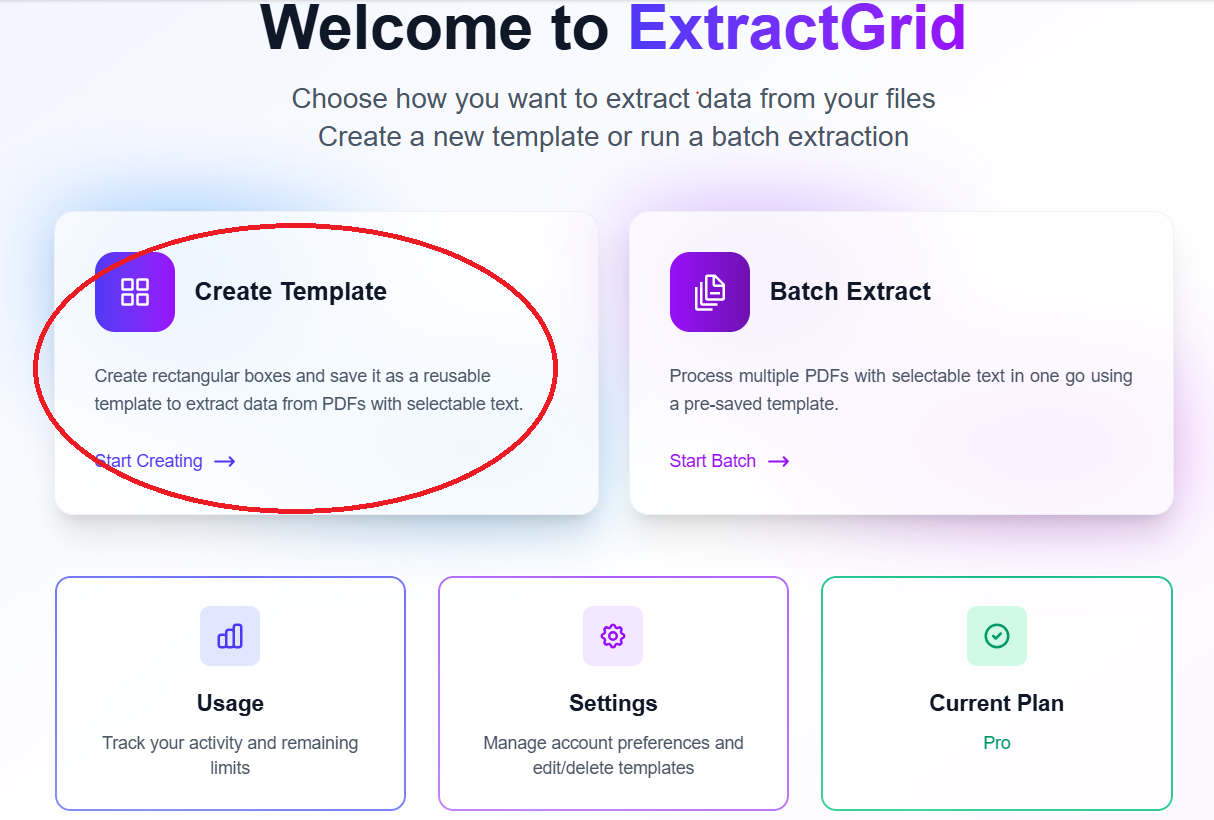
Open the dashboard and click Create Template.
Step 2: Select PDF with selectable text
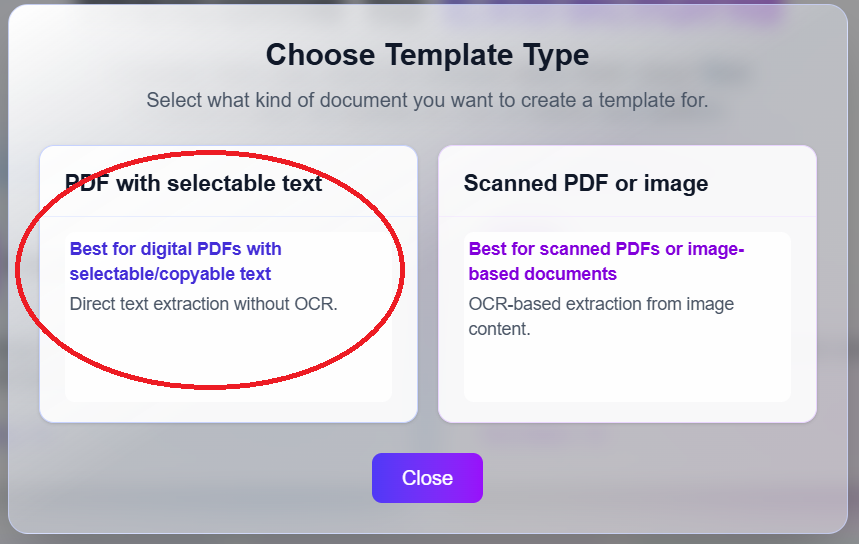
For digitally generated vendor invoices, choose PDF with selectable text for fast, accurate pdf text extraction.
Step 3: Upload a sample invoice
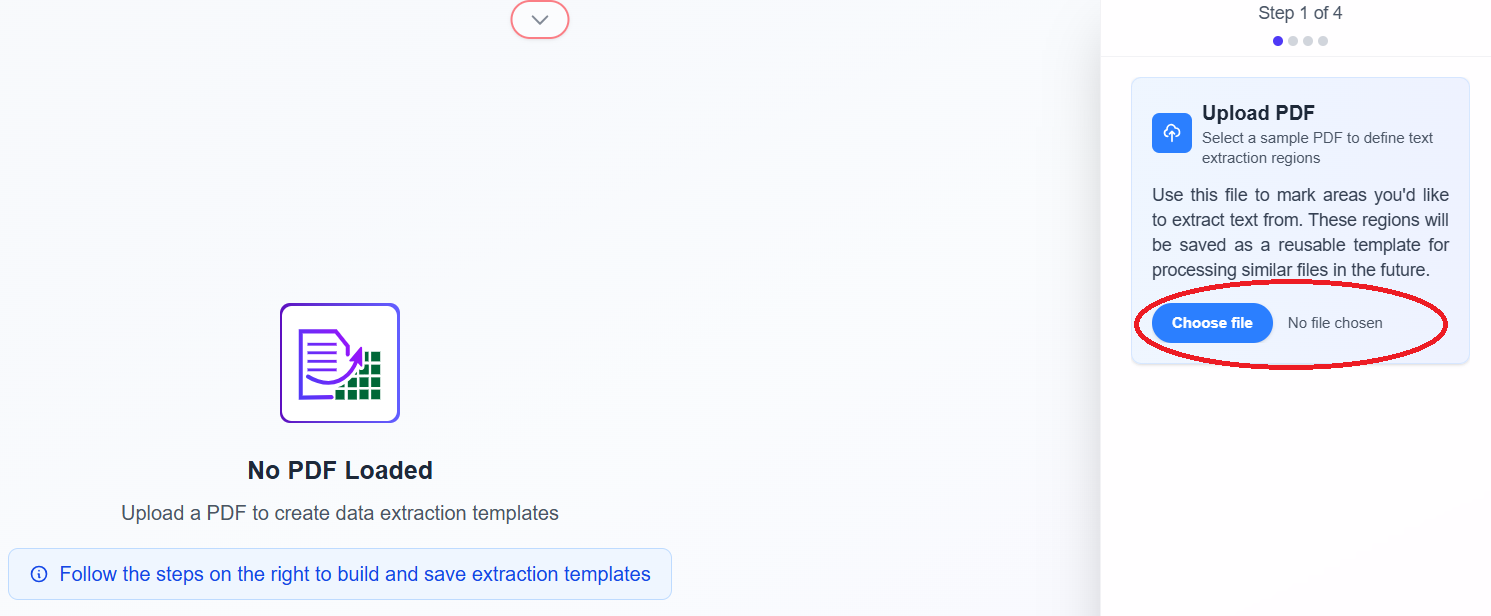
Upload a representative invoice PDF—the layout you use for bounding boxes should match the rest of your batch.
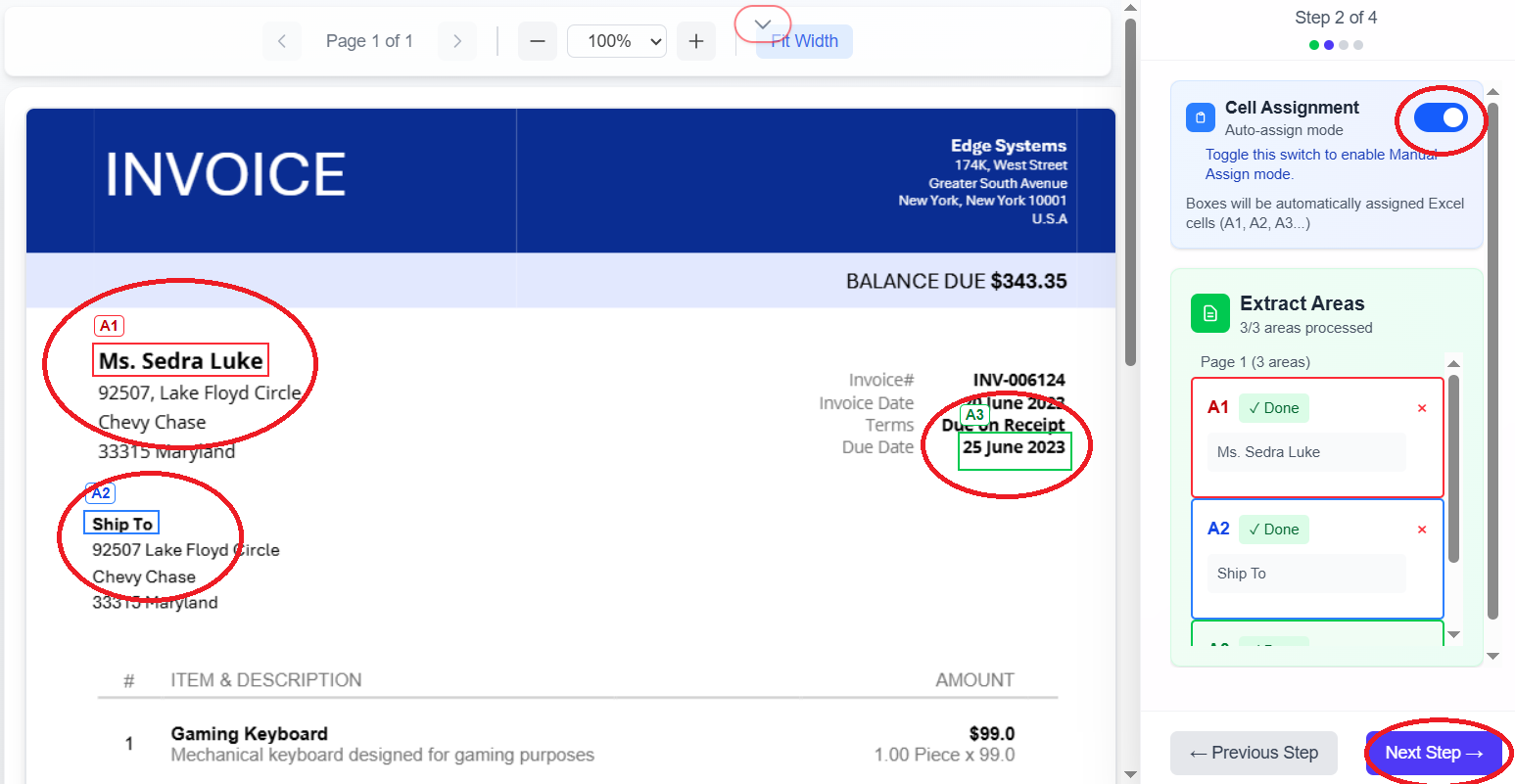
Step 4: Use automatic cell assignment
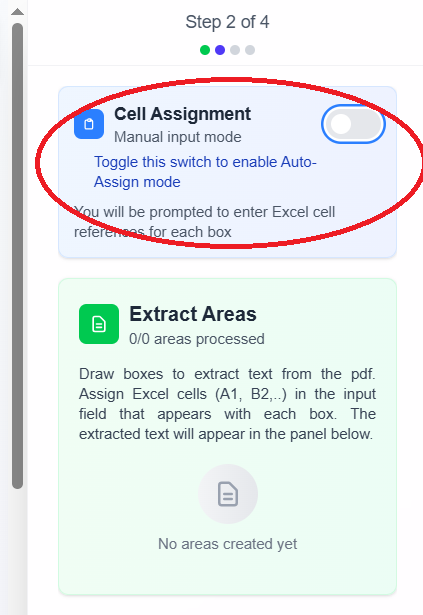
If you want cell number in the spreadsheet to be assigned automatically to a selected region, toggle Cell assignment to automatic. Let the switch remain in default position if you wish to assign a selected region a cell number of your own choice.
Step 5: Review auto-assigned cells and extracted text
Bounding boxes appear on the document; assigned cells and extracted text show in the right sidebar. Adjust any box that captures a label instead of a value.
Step 6: Save the invoice template
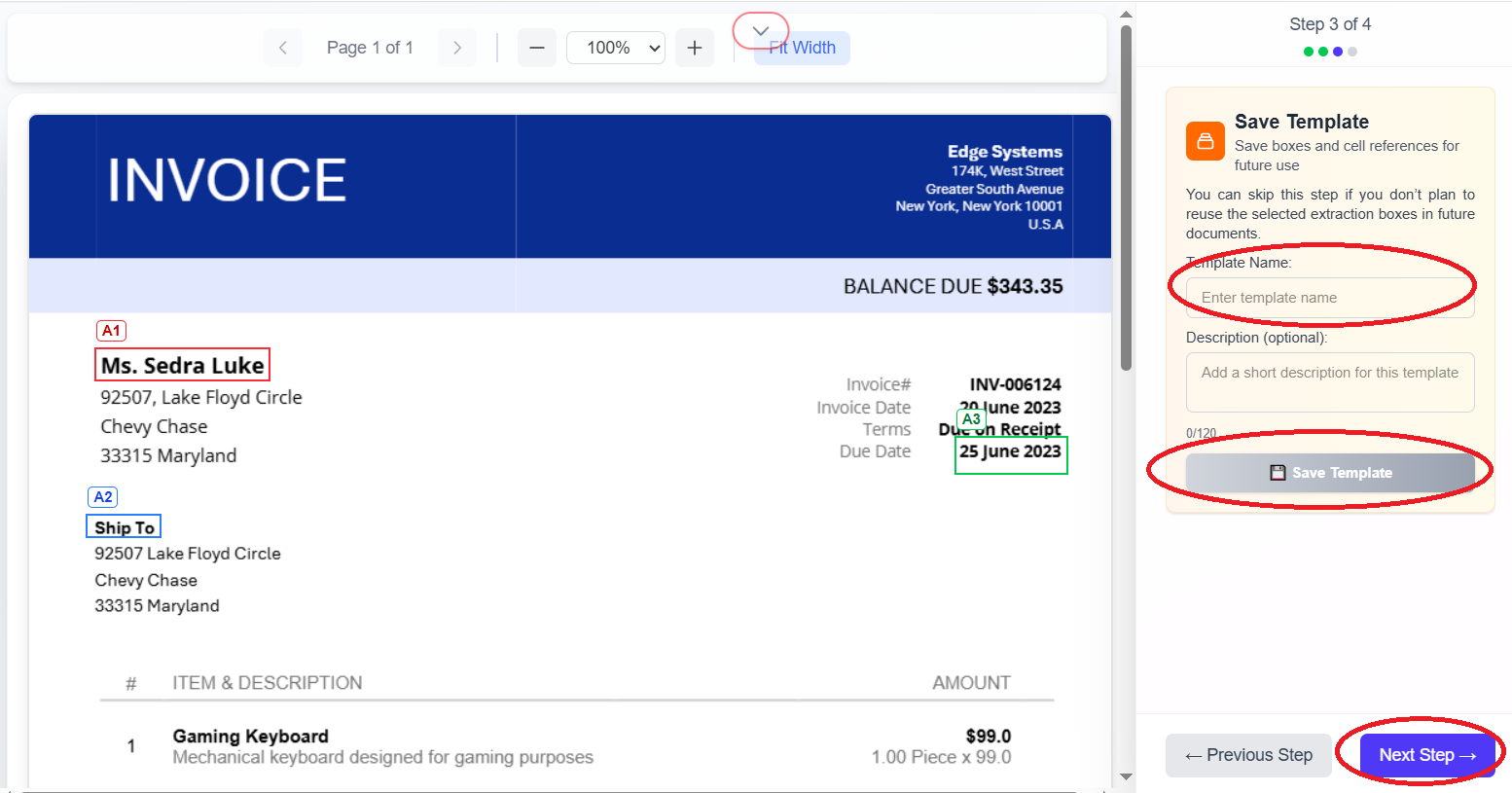
Enter a template name (for example, vendor-invoice-v1), click Save Template, then Next step.
Step 7: Test Excel export on one invoice
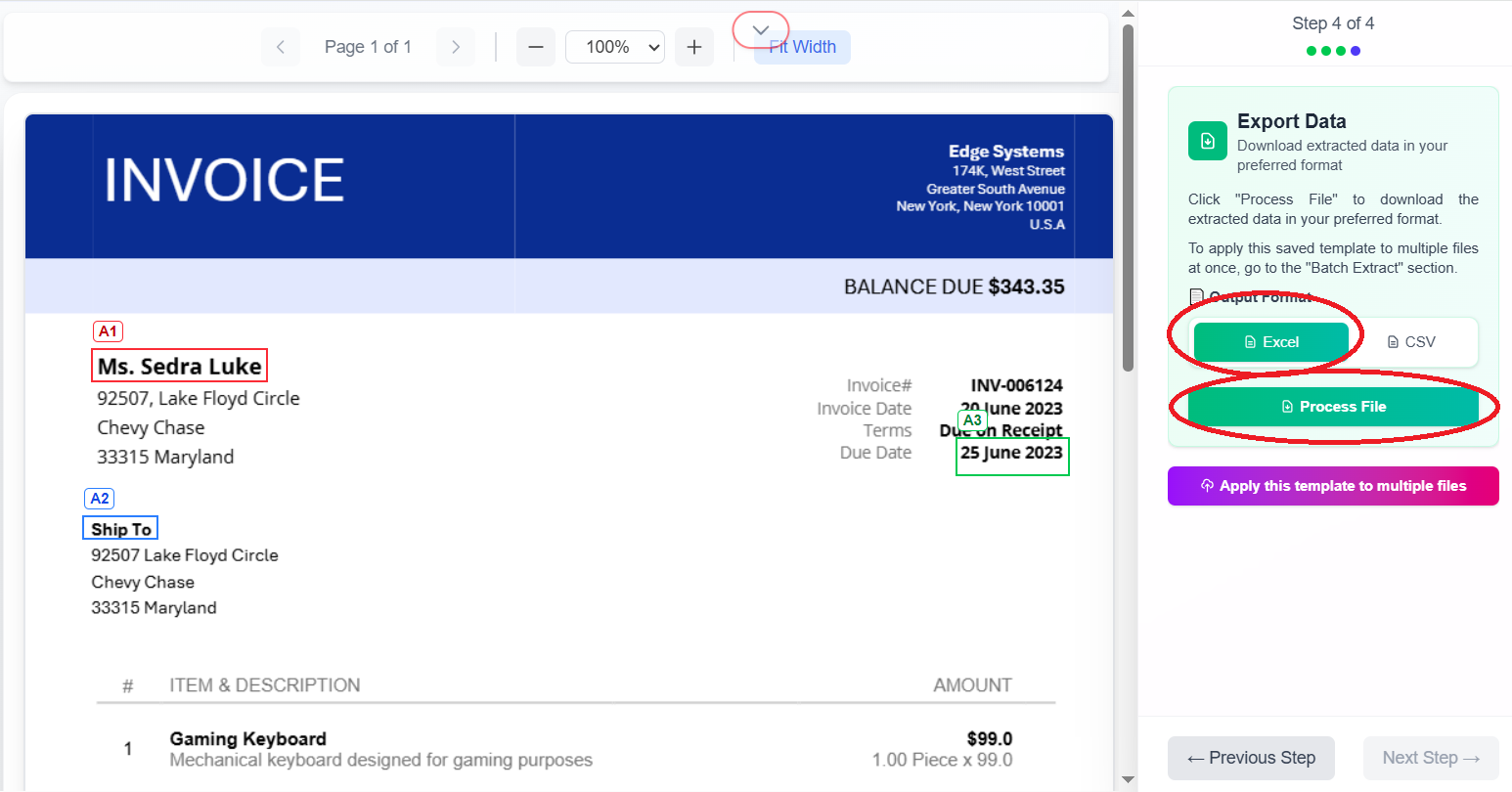
Select Excel as output and click Process files to download a .xlsx test file.
Step 8: Switch to batch processing
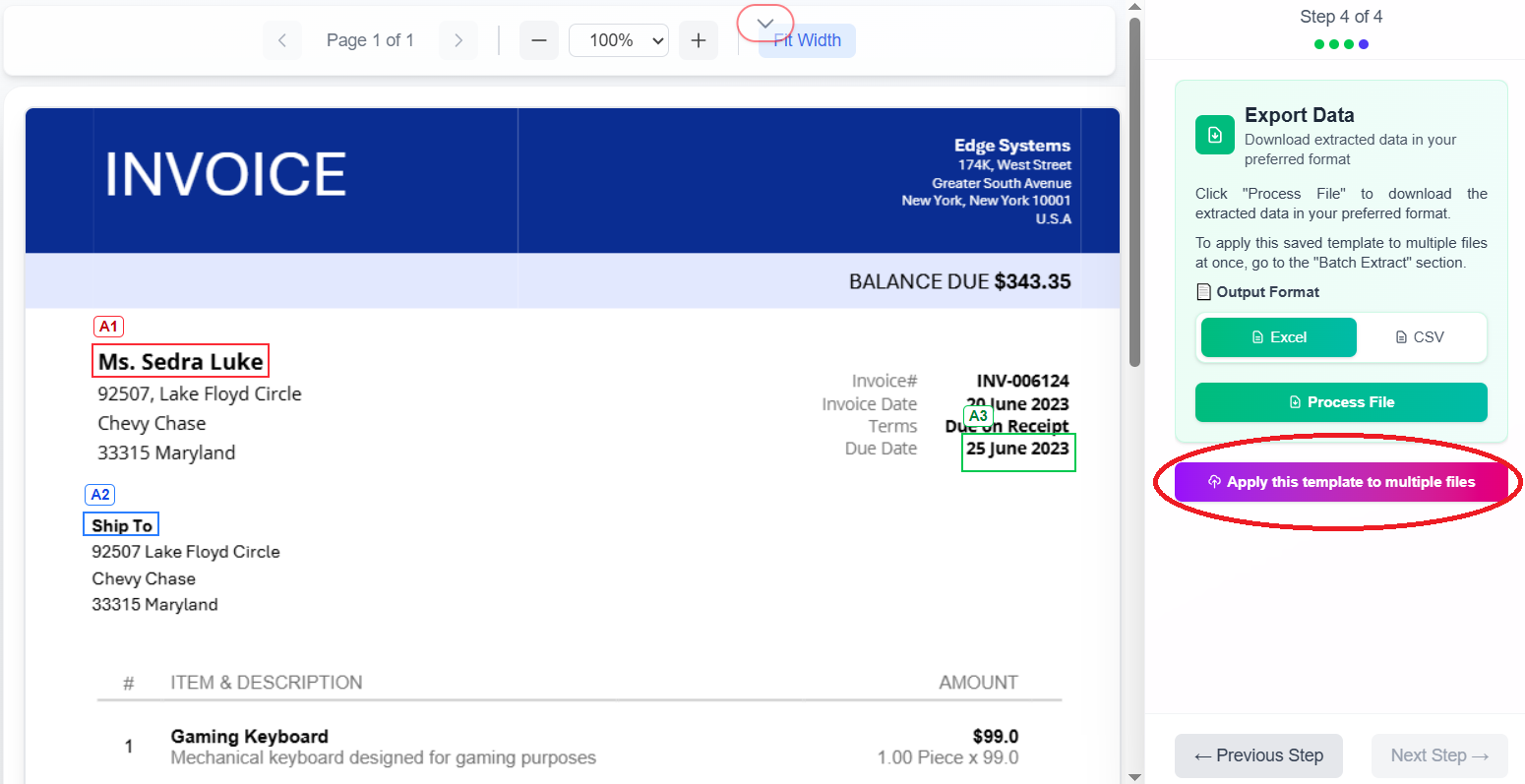
Click Apply this template to multiple files to process a folder of invoices in one run.
Step 9: Upload multiple invoices
Select all invoice PDFs for this batch upload.
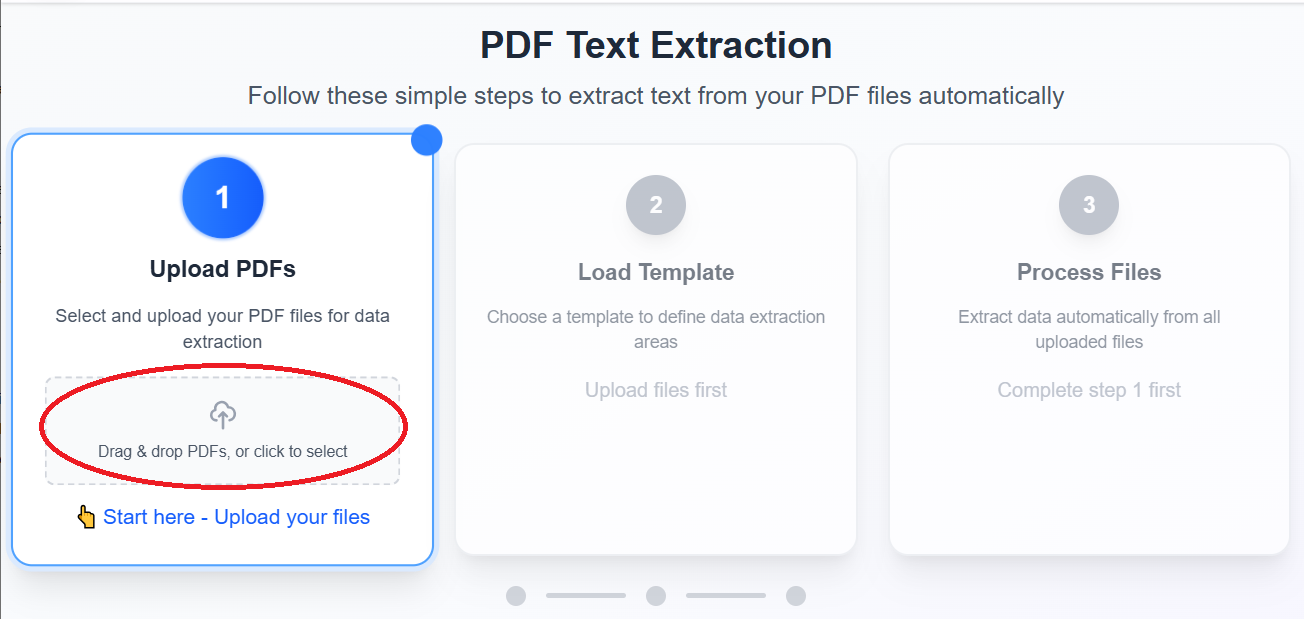
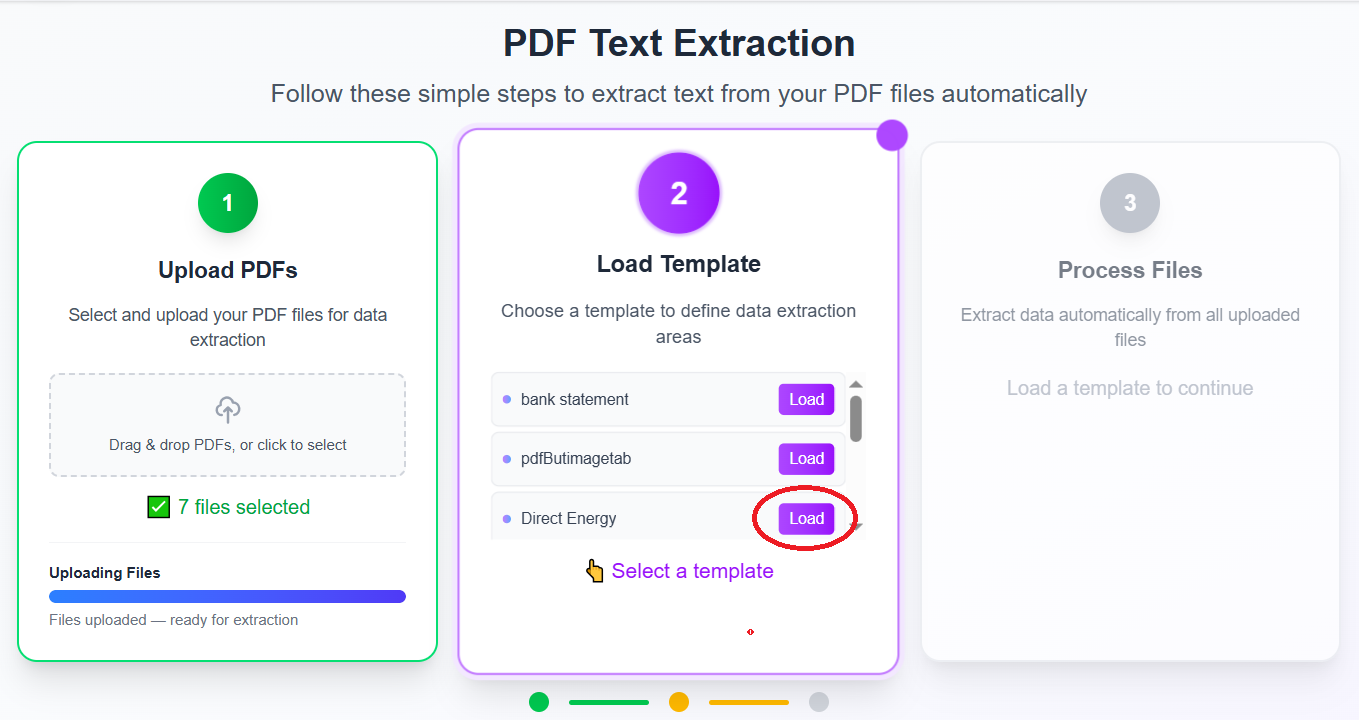
Step 10: Load your invoice template
Click Load template and pick the invoice template you saved.
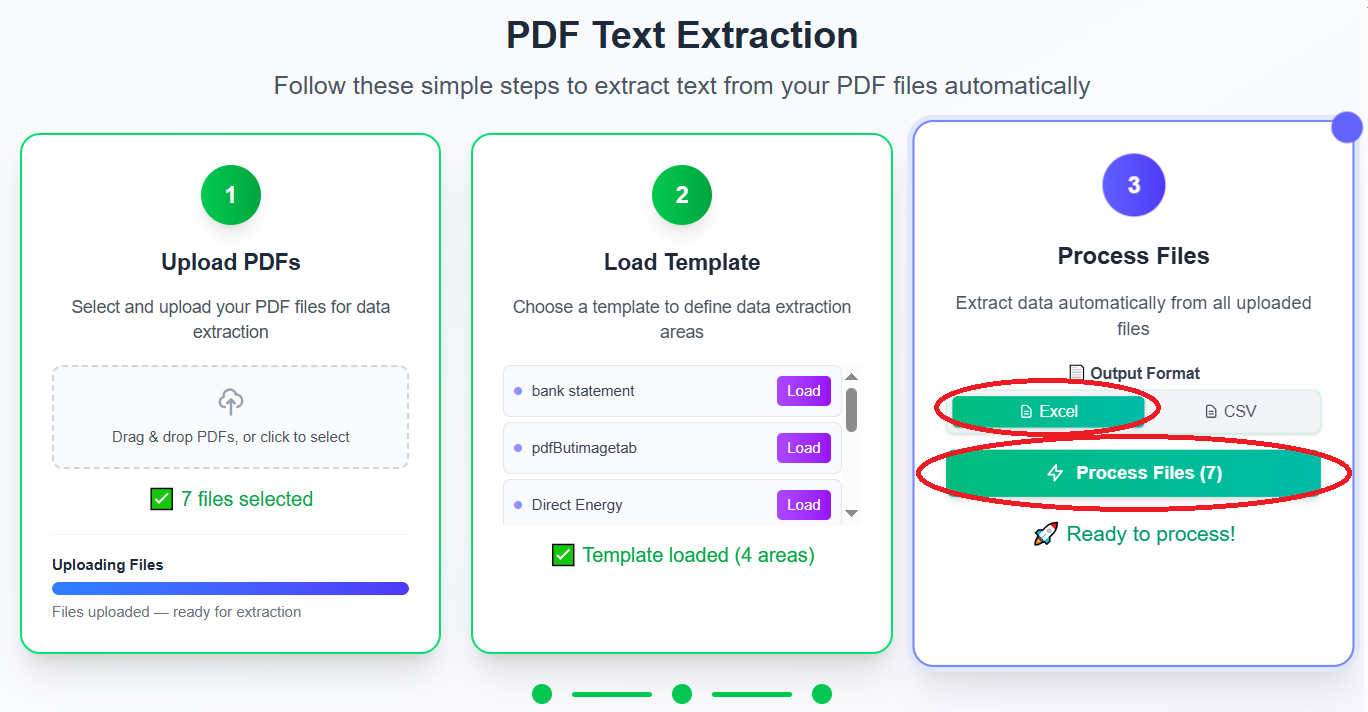
Step 11: Batch export to Excel
Choose Excel and click Process files. Each invoice is processed with the same field mapping—structured invoice processing without copy-paste.
OCR invoice processing for scanned bills
If invoices arrive as scans or photos, use Scanned PDF or image mode instead of selectable text. That triggers ocr invoice processing via ExtractGrid's batch OCR engine. The template workflow is identical; only the recognition step changes.
Related guides
| Guide | Use when |
|---|---|
| Batch PDF Text Extraction & OCR (complete guide) | Full overview of extraction vs OCR and export formats |
| How to Convert Bank Statement PDF to CSV | Transaction exports and bank reconciliation |
| How to Convert PDF Balance Sheet to Excel | Financial statements and reporting |
| OCR Data Extraction from Images | Scanned invoices and photo-based documents |
Stop rebuilding invoice tables by hand—extract data from pdf to excel with a template you reuse every month. Get started with ExtractGrid.